Meat traceability moduleTraceability · the goods-in bench · the loader
A meat plant has to answer one question fast: this pack on the shelf, which batch did it come from, and where did the rest of that batch go? DockLedger keeps that chain as the work happens rather than piecing it together afterwards. A batch comes in with its origin declared, every box gets its own label and weight, every cut is recorded as the step where one batch becomes others, and every pack carries its batch forward to the despatch it leaves on.
The Traceability screen has four tabs: Batches (what you have and whether any of it is going off), Recalls (the drill and the live recall), Production (what the cutting room did) and Setup (where the approval numbers on a label come from).
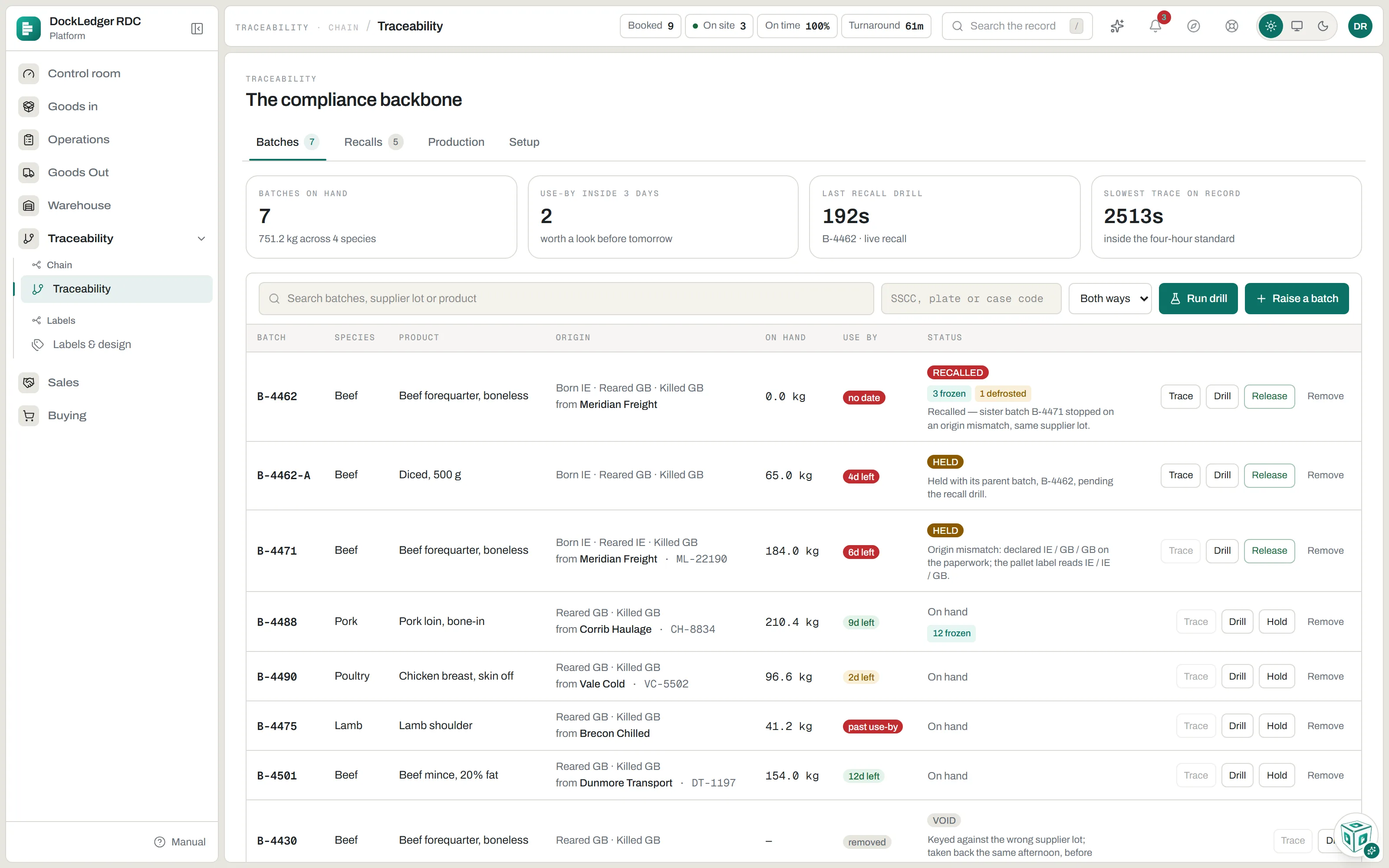
Setup: the approval numbers, once
Every approval number printed on a label comes from your list of establishments on the Setup tab: the abattoirs and cutting plants you buy from, each with its UK approval number. They are picked from the list, never typed at the bench, because one wrong digit makes every pack wrong. Your own plant’s name and approval number are kept on Labels & design. Removing an establishment retires it; labels already printed keep it.
Setup also lists any marks the goods-in bench read off a box that do not match an establishment yet. Add them, or a recall notice can quote the number but not say whose it is. The batch reference is yours, typed when the batch is raised: the one printed on your label, not the supplier’s lot number.
Raising a batch
A batch is one species, one production day, one establishment. It is raised either at the goods-in bench when a box arrives that no batch carries, or from Raise a batch on the Batches tab (owner or manager). The form asks for exactly what the law asks for that species and refuses anything that would not pass:
- Beef needs all three countries (born, reared, slaughtered), the slaughterhouse with its approval number, and names at most three cutting plants.
- Other species need where it was slaughtered. Reared in is optional, and may only name a country the animal actually spent the required time in.
- Every batch takes a use-by, never a best-before. Where it came from a supplier, add the supplier and their own lot number: the step back to the business that sold it to you, and the number their recall notice will quote.
Boxes at goods-in: the goods-in bench
Meat is received at the goods-in bench, dockledger.app/intake, on a PC with a USB scanner, a keyboard and a thermal label printer. You enter the boxes yourself; the supplier’s label is a help, not the source of truth.
- Pick the delivery you are unloading and the supplier. If it turned up unbooked, leave it on no booking.
- Scan a box: the supplier’s barcode, their product code, your SKU or a DockLedger case. A code it has not seen before asks once what it is, and knows it for that supplier next time.
- Type the supplier’s lot number. If a batch carries it, the origin fills in from the batch. If none does, raise the batch there, or receive without one and the office links it later; a box with no batch cannot be labelled for a customer.
- Weigh every box. The cursor stays in the weight column: type the weight, or press the scale’s print key, then Enter, and the next row is ready. Boxes of different weights are the normal case.
- Pick the cutting plants from the list (nothing is ticked for you, on the first pallet or the fortieth), type the marks off the box, and say whether it is frozen and which date the label gives. A use-by worked out from a production date and the shelf life is shown as a sum you can check.
- Press the print button (it reads, say, Print 12 box labels and the pallet plate). One print job: every box gets its own DockLedger code and weight, and nothing prints until every box has a weight and the cutting plants are picked.
Production: where one batch becomes several
The Production tab is the cutting room’s diary: every time a batch was cut or repacked, what went in, what came out, and the weight lost to trim and bone. The cutting room app and the bench station write these as the butcher works. A cut nobody recorded is a gap in the chain that nobody can explain later.
Holding a batch
Press Hold on any batch and say why. The reason is compulsory, because it goes on the batch’s trail with your name against it. From that moment the floor stops it: the cutting room and the bench station refuse a box from it, and the loader stops it at the tailgate. You can still receive against a held batch; nothing can leave from it. Owners, managers and office staff can hold. Only an owner or manager can Release, because deciding stock is safe again is a different decision from stopping it. Remove (owner or manager) takes back a batch raised by mistake, in one press.
Under the batches, What is still out on a vehicle lists the despatches not yet signed for, and those that are.
Drills and recalls
A drill is “show me you could”. Press Drill on a batch, or type an SSCC, pallet plate or case code into the box above the list and press Run drill. Choose Both ways, Forward or Backward first. DockLedger walks the chain back to where it came from and forward to every pack and customer, times itself, and weighs it: what came in, what was despatched, what was packed or cut, what is still on hand, and what is unaccounted for. Owners, managers and office staff can run one.
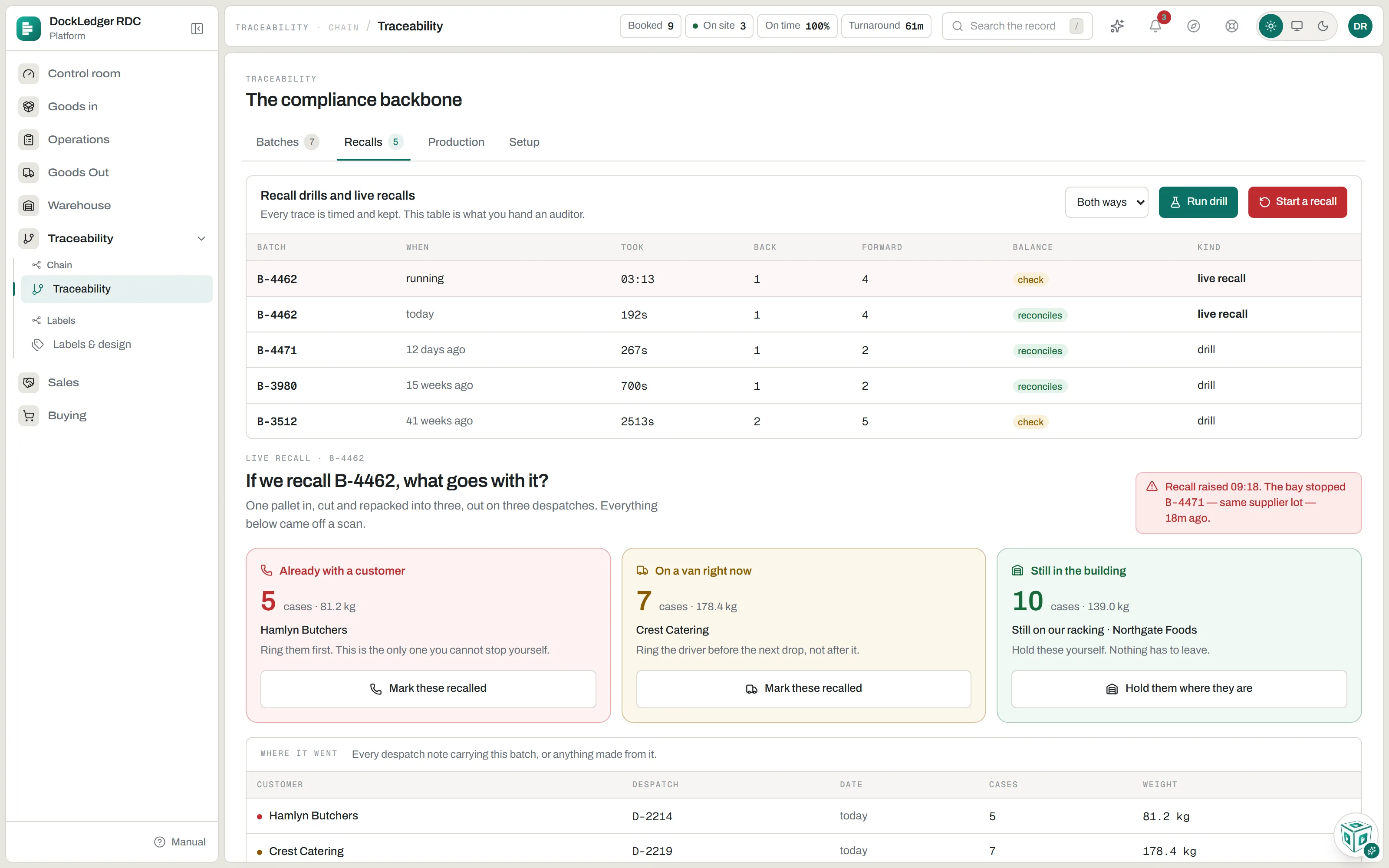
A recall is “it has happened”. Trace on a batch opens the Recalls tab drawn for it: the tree from the pallet that came in to every despatch, and the stock split three ways, each with what to do and a button for the part the console can do:
- Already with a customer: ring them first. Mark these recalled holds the batches behind them as recalled.
- On a van right now: ring the driver before the next drop. Mark these recalled does the same for that van's batches.
- Still in the building: Hold them where they are. Nothing has to leave.
Start a recall puts the recall on the log with its clock. Log each customer call as you make it (who you spoke to, how, what they said and the outcome), and the Recalls tab keeps it with the recall. Freeze and Defrost are here too, for the part of a batch still on your racking: each asks which pallets, when and why, and the label changes with it.
Run a drill every month
Sending it out: the loader
Despatch happens at the bay, on a handheld: dockledger.app/load. Tap the customer, then scan every box as it goes on. The count and the weight stay on screen, and nothing has left the building until you check the load and press Despatch this load, with the vehicle registration and haulier if you want them on the note.
A box that must not leave stops you there, before it is on the lorry, and says why: it is not a box DockLedger knows, it has already gone to someone else, its batch is on hold or recalled, it was cut down in butchery, it is a pack already inside a box, it was scrapped, or it is out of date. The same app has a Pack tab for packing retail packs into a labelled box, and a Deliver tab where the driver has the customer sign for each drop.
Where this fits: BRCGS traceability software