PlatformGoods in → Live bookings
Live bookings is the dock diary. It opens on Day: a strip of the next two weeks across the top, and under it the chosen day drawn bay by bay, one block per booking. A block’s width is the slot you booked; the thin line along its foot is how long the vehicle actually took. Two bookings on one bay at the same time are flagged in red above the grid as a slot collision, so a double booking is seen before the lorries are.
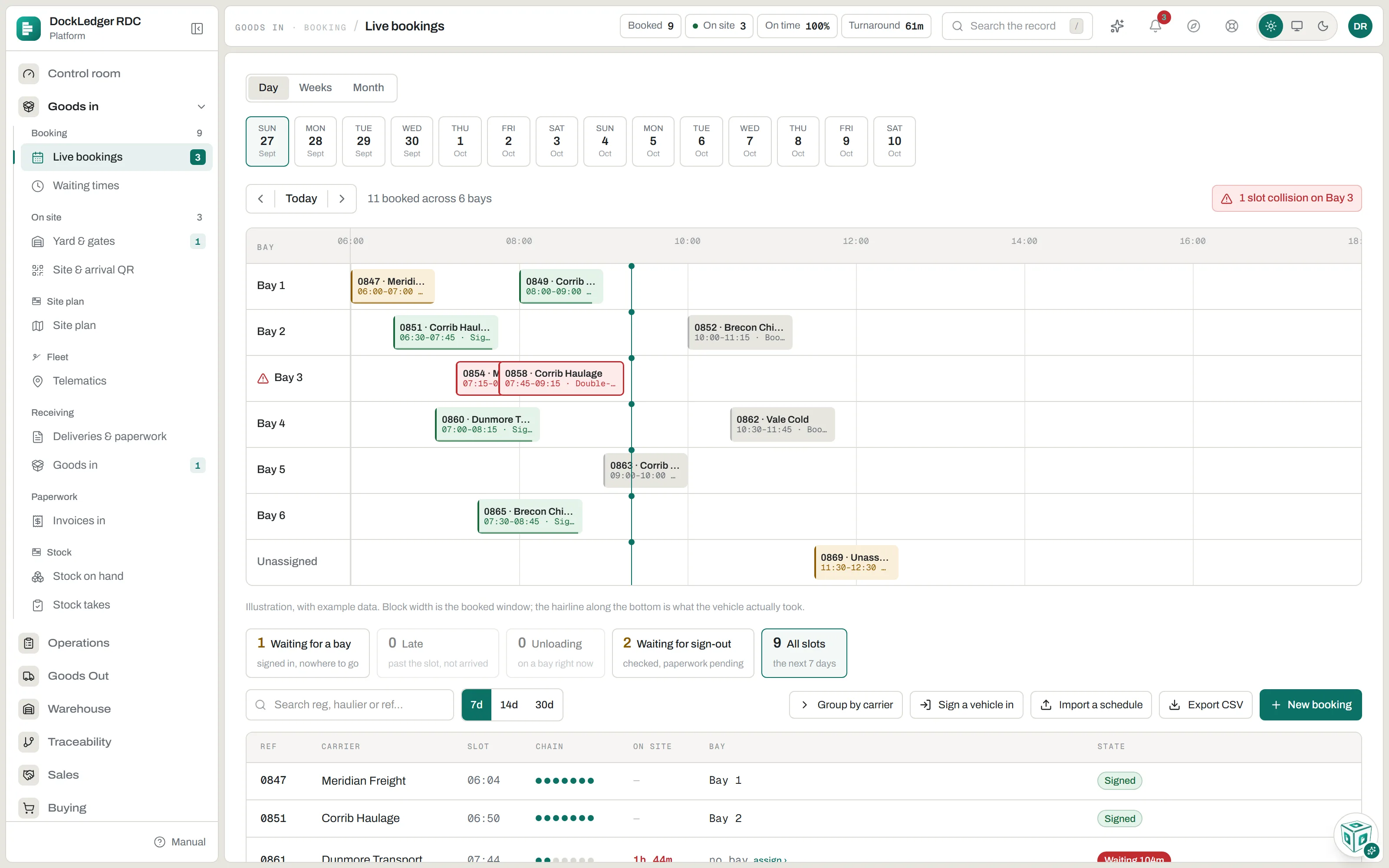
Under the diary sit five tiles: Waiting for a bay (signed in, nowhere to go), Late (past the slot, not arrived), Unloading, Waiting for sign-out (checked, paperwork pending) and All slots. Tap one and the table narrows to just those. The table looks 7, 14 or 30 days ahead, searches by registration, haulier or reference, and can be grouped so each carrier is one row. The seven dots on a row are the delivery’s chain: booked, arrived, on a bay, checked, paperwork, put away, signed. A red dot is the stage it broke at. Click any row to open its record.
Adding one yourself
Press New booking. Pick the carrier or haulier and, if you know it, the supplier whose goods are on board, both from your Contacts. Then the day and the slot. The slots offered are the same ones a carrier’s own booking link offers: on your grid, ahead of now and under the capacity you set for that time, with how many are still free beside each. Category, expected pallets, their reference or PO number and the vehicle registration are all optional. You rarely have the driver’s details, and you do not need them: the driver gives them when they check in at the gate.
Until you publish your yard hours under Settings → Site → Opening hours & slot rules, any time is accepted. Once they are published, the form only offers slots that exist. Outbound collections are booked the same way from Goods Out → Collections, with Book a collection.
A week at a time, from a file
If your inbound schedule arrives as a spreadsheet from a customer, a planning system or a haulier, Import a schedule puts it on the board without re-keying. It reads .csv files: save a workbook as CSV first (File → Save As → CSV). There is a template to download if you are starting from nothing.
- Two columns are needed: a date, and a haulier or a supplier. Time, reference, pallets, category, vehicle, trailer and driver are picked up when they are there.
- Columns are matched by their heading, and you can correct any guess before anything is saved. Dates read as dd/mm/yyyy, yyyy-mm-dd or “5 Jun 2026”; times as 08:30 or 8:30 am. Include the time if the schedule has one: a row with no time lands at the very start of its day.
- Nothing already on the board is changed. A row with the same reference, or the same partner at the same minute, is counted as already there and left alone, so a schedule re-sent all week can be imported all week. Rows that cannot be read are listed with the reason.
- Dates already behind you land as history, not as live slots. The preview warns you, because a file whose dates have been read a month out is the usual cause.
Looking further ahead
Weeks and Month show the diary as a calendar. A solid block is booked. A dashed one is an open purchase order expected that day and not yet booked, dated from the supplier’s promise, the day you asked for, or their lead time; hover it to see which. A hatched day has no slot rule, and the bar under each date is slots taken against slots offered. Pick one supplier to see what is coming from them; Book it on an expected order opens it in Buying with the booking form ready. Lead times count calendar days and ignore bank holidays, so a date across one may slip. Tap any day to open it on the Day view, where booking and moving happen.
When a carrier or supplier asks for a slot
Partners with a portal link cannot write in your diary. They can ask, and the request arrives on the board as Slot requested, or Move requested when they want to shift a slot you already gave them. The row carries Approve and Decline. Approving a move puts the booking at the time they asked for; until you answer, the original time stands. Declining asks for a reason, and the haulier sees it.
You can stop carriers asking for a day too close to it under Settings → Site → Booking windows. The diary shows the cut-off for each day. Your own team can still book a day that has closed to carriers.
Moving, changing or calling one off
- Move it to another day. Drag the row onto a day on the strip, or press ⇄ Move on the row and tap the day. Each day tells you whether the same time fits under your yard’s rules. Say why it is moving: the carrier sees the new day and your reason on their portal link straight away. The booking keeps its time.
- Change the time, the bay or the note. Open the record and press Edit. A new time or bay needs a reason, which the carrier is shown. A note needs none.
- Call it off. Press Cancel on the row or on the record and give the reason the carrier will read. A called-off delivery leaves the board but stays in the history with its reason. It cannot be taken back: book it again instead.
Who can move a booking
Where this fits: Dock booking software