PlatformSales → Orders · Invoices out · Contacts
Your customers order from you online instead of ringing. Each buyer gets a login of their own, not a link, at dockledger.app/orders. They see your name and logo, your products at their prices, their own orders, every delivery note with the signature on it, and a calendar of what is coming. Nothing else of yours.
Giving a customer access
- Contacts → open the customer → Customer portal → type the buyer's email and name → Give portal access.
- The invite link is copied for you. Nothing is sent until you send it, by whatever route you normally use; the envelope beside the invite starts an email with the link in it. The link works for 14 days.
- The buyer opens it, confirms their name and email, chooses a password, and lands in the catalogue.
The panel lists everyone at that customer with a login, when they last ordered, and any invites not yet opened. Copy an invite again or cancel it from there. Remove a login the day they stop being a customer; they cannot sign in again and the account is deleted. Only customers on the active list can be given access. Owners, managers and the office can do it.
What the buyer does
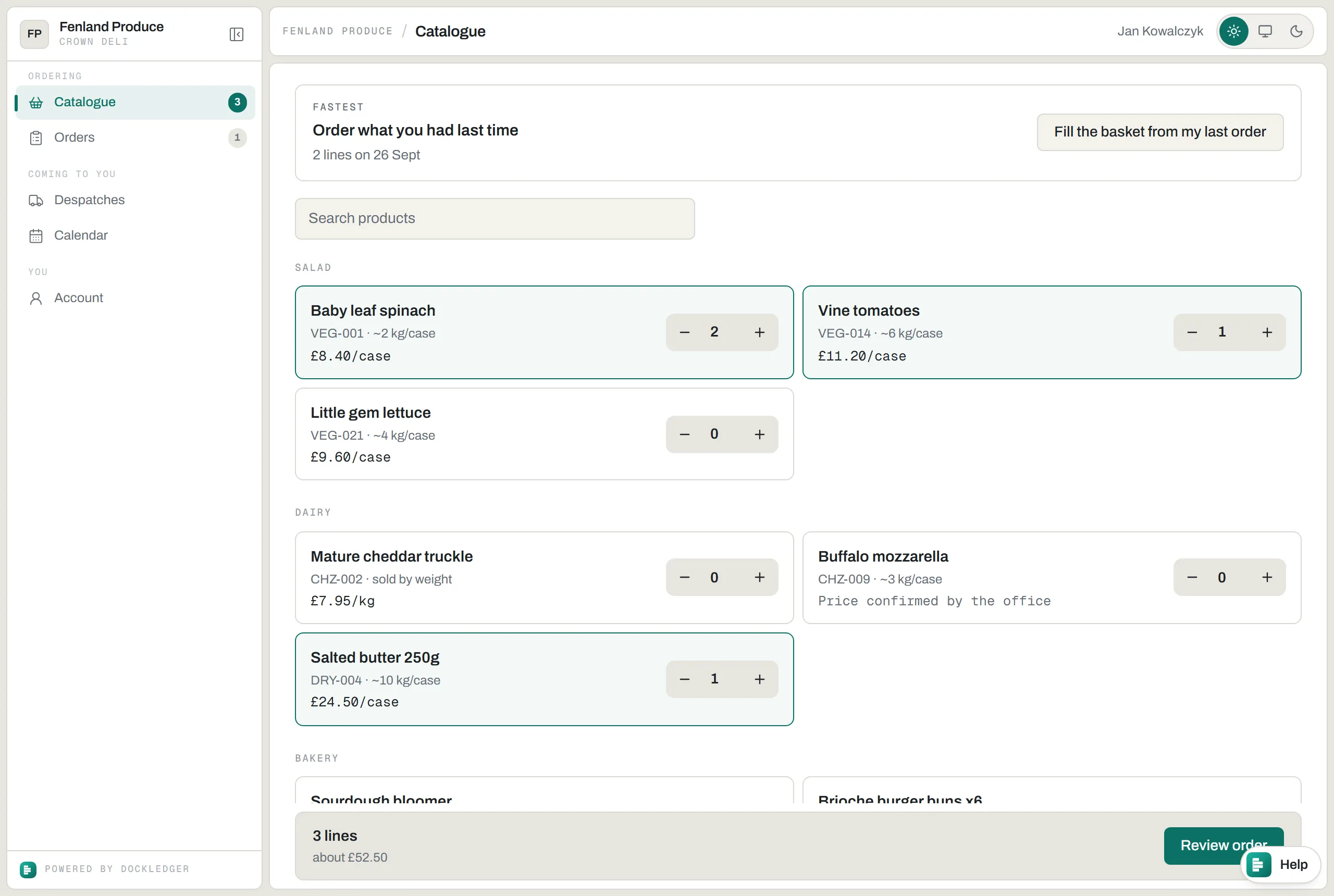
- Catalogue. Your products grouped by category, with a search box. Each shows its code, the case weight if you hold one, “sold by weight” where it is, and their price per case, per kg or each. A product with no price for them says “Price confirmed by the office”. Fill the basket from my last order puts their previous order straight back in. The bar at the foot shows how many lines are in the basket and roughly what they come to.
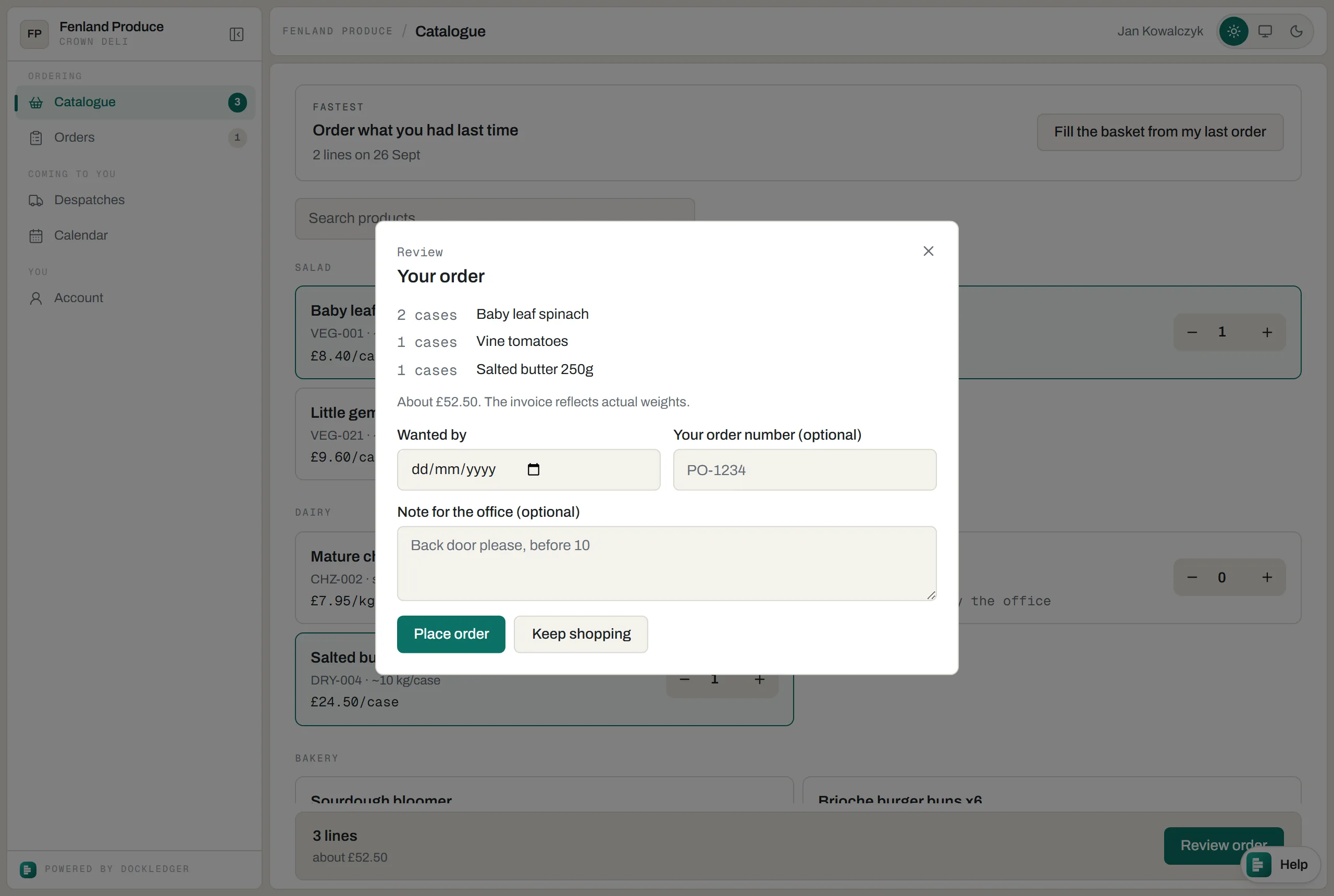
- Review order. The lines, the rough total, and three fields: Wanted by (tomorrow at the earliest), Your order number for their own purchase order reference, and a note for the office. Place order sends it.
- Orders. Everything they have placed and where it is: Waiting for the office, Confirmed, Being picked, On its way, Invoiced, or Declined with your reason. Open one to see its lines and prices, their reference, the collection if one is booked, and the despatch with any lines sent short and who signed for it. They can order it again from there, and cancel it while it is still waiting for the office.
- Despatches. Every delivery note: when it left, the vehicle, cases and weight, anything short, and who signed for it. Case codes carry their use-by date. They can print the note.
- Calendar. A month of their own orders and deliveries. Tapping a day from tomorrow on offers Order for this day, which starts an order with that date already in Wanted by.
- Account. Their details and a password change. A forgotten password is reset from the sign-in page.
Prices on the site are as you hold them. Meat is sold by weight, so the total is “about” and the buyer is told the invoice reflects actual weights. If ordering is paused on your side the buyer sees a banner asking them to ring you instead. The Help pill on every page reaches the DockLedger team, and a login that is not a customer’s is turned away with a sentence saying so.
In the office: the Orders screen
Every order is drawn as a track: ordered, then picked, loaded and delivered, with a mark for the day it was promised. The tracks are lined up so every promise falls on one line down the page, and anything that runs past the line is behind. The screen shows the next three days and anything already past its day. The filters are Everything, Will miss it and Not picked yet.
An order from the site arrives waiting for you, with a Confirm button on its row. Click its code to open it: every line with the live stock on hand beside it, the price and the total, the customer’s note and order number, where it came from (Portal, Office, API or EDI) and its full history. What you can do depends on where it is:
- Confirm order, or Decline it with a reason. The reason is required and the customer sees it.
- Release to picking puts it on the pick board as an ordinary picklist; Open pick board takes you there.
- Book collection and Despatch (loading check) are covered in Collections and despatch.
- Attach despatch note links a note made on the loading bay to the order and marks it despatched.
- Cancel order stands down any picking raised for it.
New order is for phone orders: pick the customer, add their order number, the day they want it and a note, then search the catalogue for each product. Prices come from their price list, as they would on the site. Move a promise changes the day on an order. Tell the customers opens Send to customers, which emails each late customer your message, their order and the day it is promised, from your site’s name; replies come to whoever sent it. A customer with no email on file is named and not sent: add one in Contacts. Taking and acting on orders is an owner or manager job; the office can send to customers too.
Prices
Price lists sits in the filter row. Every product has a list price that everyone gets. You can make named lists, a premium list or a friends list for example, with quantity breaks, and put customers on them. A customer can also have a price of their own for a product. The rule is one sentence: their own price beats their list’s price, which beats your list price. Each price is per case, per kg or each, and a price sheet can be imported from a spreadsheet. A price that came in from your accounting system says so in the Source column.
Once an order has gone out, invoice it under Sales → Invoices out: the despatch is listed under Not invoiced yet, and Invoice it makes a numbered draft from what was actually loaded, priced the same way.
Accounting and the orders API
Xero and Sage are connected under Settings → Integrations, and orders can also arrive through the API or EDI. See Integrations and webhooks.
Why a login and not a link