Warehouse & racking, Deliveries & evidence or Meat traceability moduleGoods in → Goods in · the checker app
Goods in happens on the floor, in the checker app at dockledger.app/checker, on a phone or a scanner gun. The first time a device opens it, it asks what the device is: a phone at the bay, for counting pallets off a lorry, photographing damage and taking the driver’s signature, or the goods-in bench, with a keyboard, a scanner and scales. It remembers the answer. Checkers sign in with the username and password their manager gave them; it is not an email address. A gun types like a keyboard, so there is nothing to connect, and on a phone the camera can read a code too.
The Goods in screen in the console is the office’s side of the same work: every vehicle on a bay, what was declared against what was scanned, who is on the floor, and the pallets still waiting to be put away. The two stay in step as the scans land. Goods in comes with any of the Warehouse & racking, Deliveries & evidence or Meat traceability modules.
Step 1: take each pallet off
On the Deliveries tab the checker sees today at the bay: what is expected, what is on site, and what is done and waiting on the office. On Unload they pick the delivery and work pallet by pallet.
The rule is simple: the plate is the pallet. Every pallet carries a DockLedger plate, and scanning it is the first thing that happens to it. If the supplier prints a proper GS1-128 pallet label, scan that next and the app reads the SSCC, batch, use-by and case count off it. Where you have loaded the supplier’s pallet list, the product and cases fill themselves in too, and the screen says so, so somebody still checks them. Otherwise the checker searches for the product and types the cases. Then Record this pallet, and on to the next.
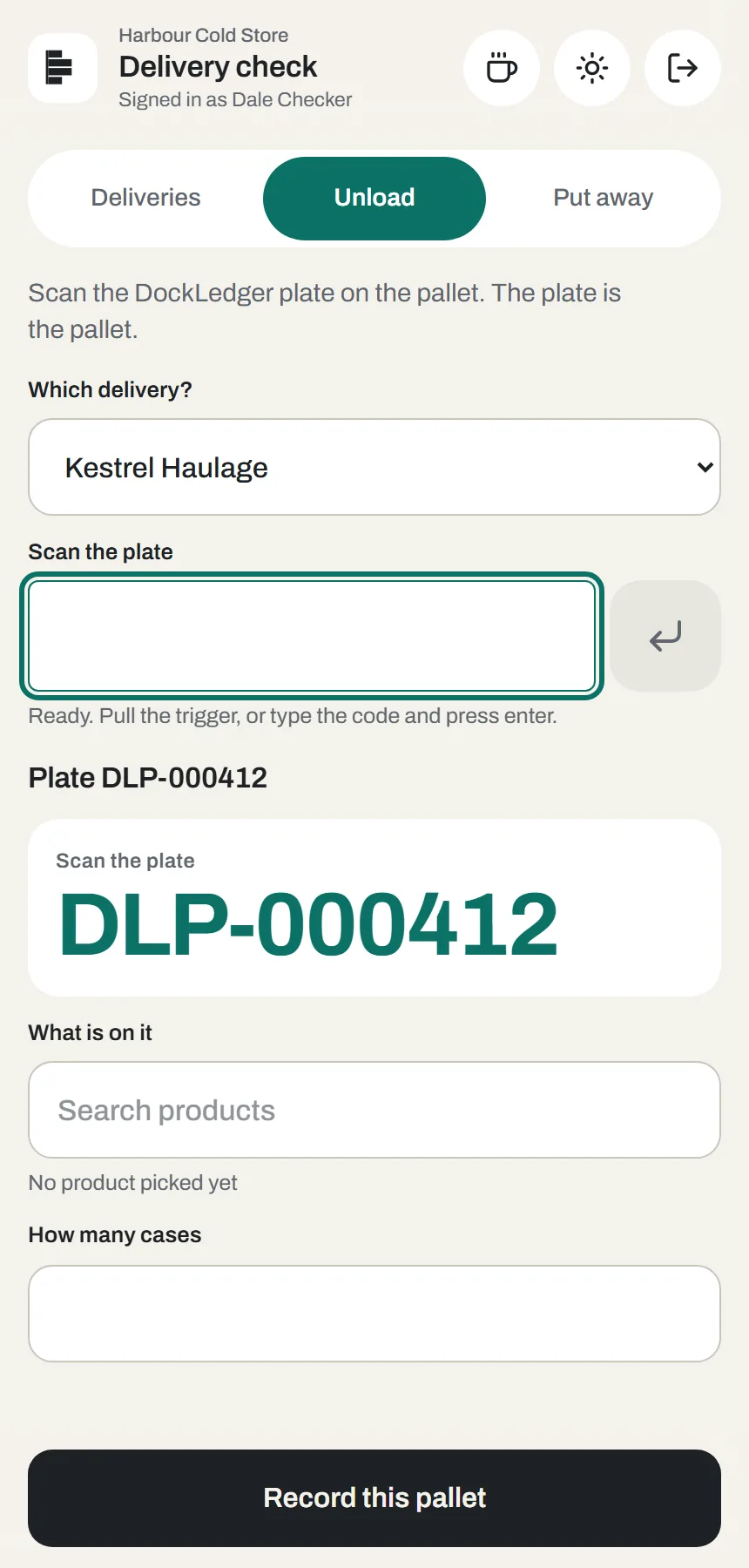
The app will not let a pallet quietly jump deliveries. A label that belongs to a different booking, or one already received, is flagged before anything is recorded.
Blank plates are printed in the office, not on the dock: Warehouse → Barcodes → Print blank plates, up to 500 at a time. The screen shows the next plate number, and asks whether the sheet actually came out, because a browser cannot see a printer.
When nothing on the load scans
For a load whose labels will not read, the checker presses Nothing scans? Count it in. They count the pallets on the floor, not off the paperwork, and the app shows that count against what was booked or declared. Then, pallet by pallet: the product, the cases, the supplier’s lot number and use-by if they can read them, and a probe temperature if it came in chilled or frozen. Nothing is written until they press Mint the codes and record it, which creates a plate for every pallet, and case labels too if they asked for them. The labels wait at the goods-in bench under Ready to print, or print on the device itself if it has been set up with a printer.
Temperature
Every probe reading is judged on the spot against the site’s temperature bands, set by the pallet’s class under Settings → Site → Temperature bands. Out of the box, chilled is −1 to 5°C, frozen is −18°C or colder, and ambient has no band. A reading outside its band puts the pallet on hold immediately, with the reading and the band as the reason, and the office releases it. The console’s Goods in screen lists the temperatures taken on each delivery and any excursion.
Step 2: against the paperwork
What should have arrived reaches DockLedger from the console’s Goods in screen, before or while the vehicle is on the bay:
- The supplier’s pallet list. One line per pallet: label, product, cases, lot, use-by. Paste it from their email or choose a CSV. This is what the scans on the bay check themselves against.
- The delivery note. What the supplier says they sent, line by line: product, quantity, unit, barcode, batch, use-by. Paste or upload it. This is what the release checks the delivery against.
- By hand. Add or fix a single line. On a shared load, say whose goods each line is: until you do, no supplier sees that line on their portal.
Column headings are recognised, and you can correct any guess before loading. Lines typed by hand are never replaced by a later import. With nothing loaded, the checker gets a free check with nothing to reconcile.
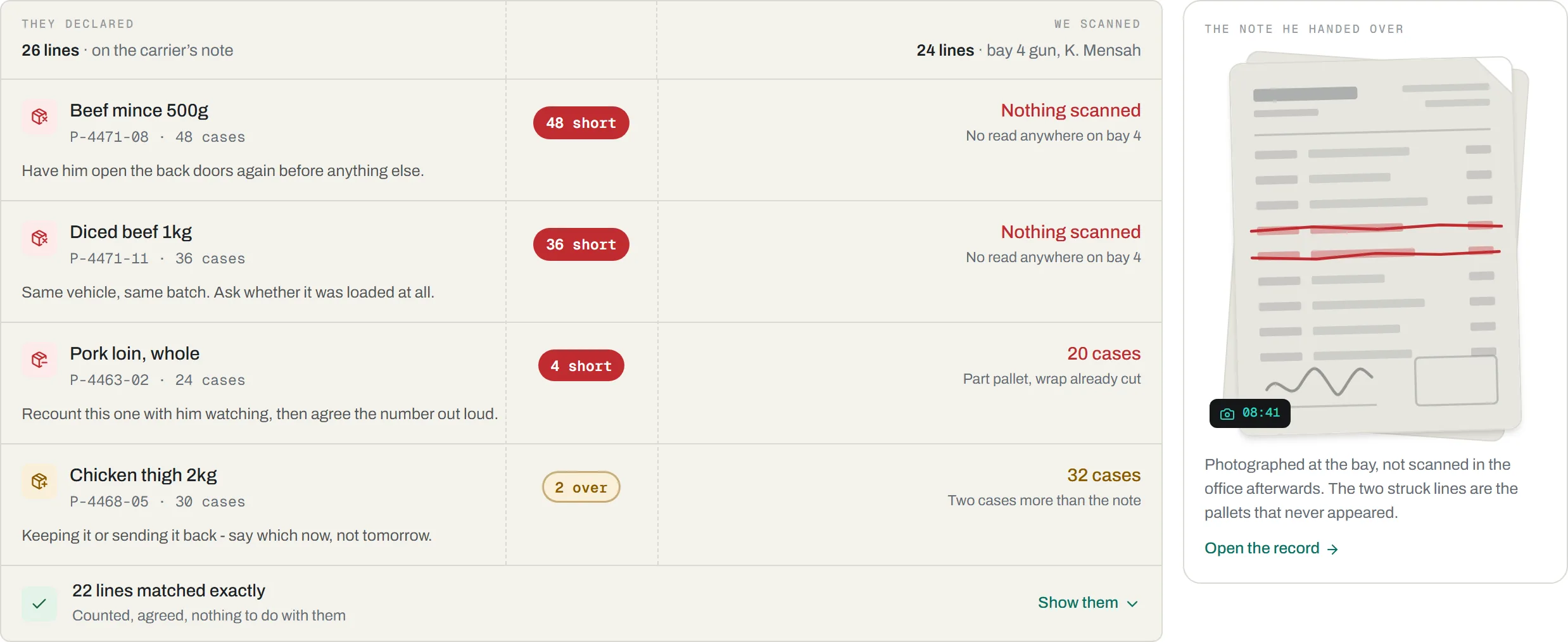
The office sees it line by line: They declared against We scanned, with each difference named (nothing scanned, fewer than the note, more than the note, not on the note) and a plain suggestion beside it, such as recounting a part pallet with the driver watching. Lines that matched are folded away.
The delivery sheet: count, photographs, signature
Tapping a delivery on the checker’s Deliveries tab opens its sheet. It is where the check is finished, in this order:
- The count. How many pallets actually came off, against how many were booked in. This is the checker’s own number and it goes on the report.
- What the office will check. The delivery note against the pallets scanned so far. If they disagree, the sheet says plainly that the office cannot release the driver yet, so it can be sorted while the lorry is still there.
- A note and photographs. Damage, a short pallet, the wrong product. Photographs, and PDFs, are held on the phone and sent when there is signal.
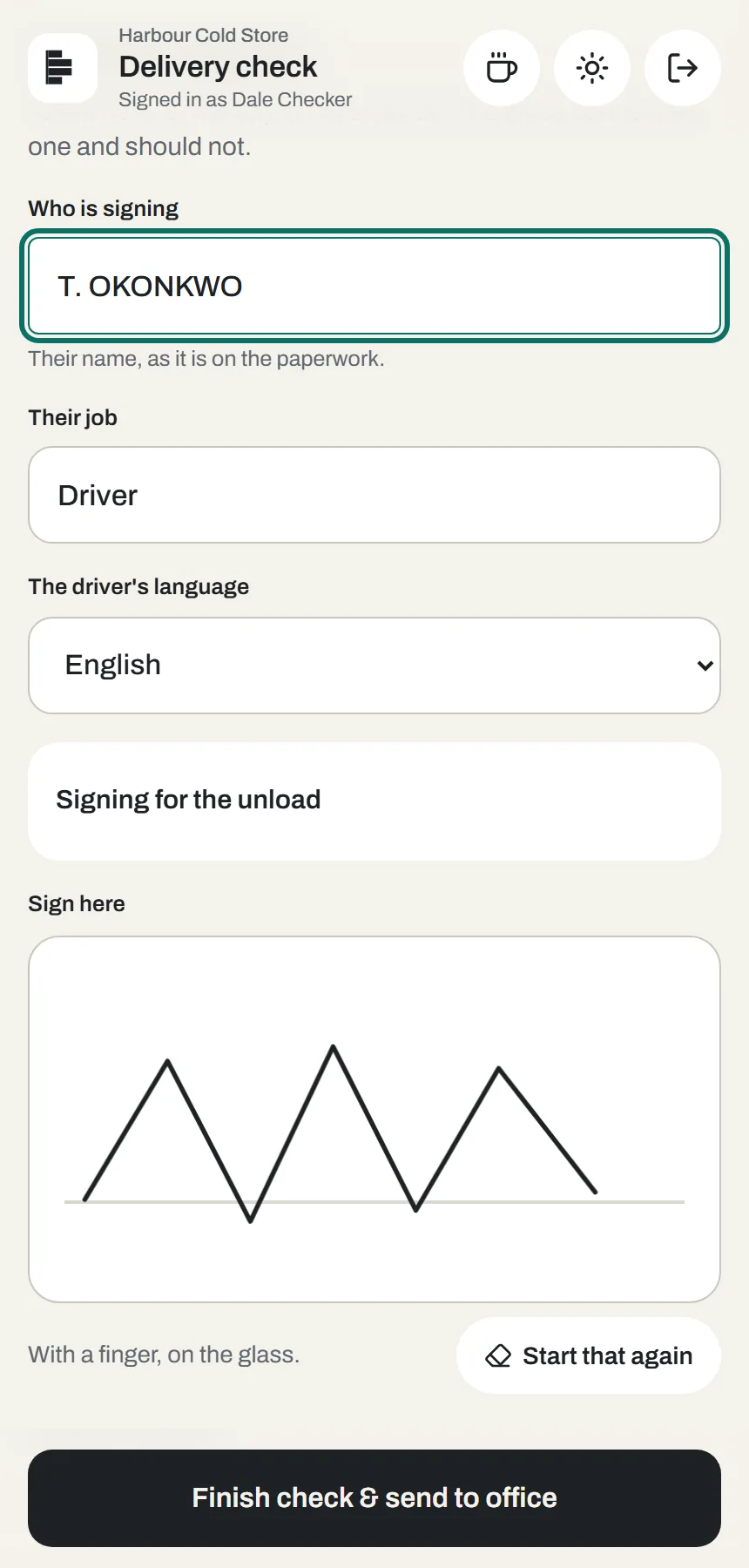
- The driver’s signature. Their name as it is on the paperwork, their job and their language, signed with a finger on the glass. The time and where the phone was are recorded with it. The office cannot take a signature, and should not.
- Finish check & send to office. The app warns if there are no photographs or no signature, because afterwards there will be no other evidence.
The paperwork, checked
With the Deliveries & evidence module, Read under a photographed delivery note or CMR has its lines read by a model, and what it read is kept beside the photo as a proposal, never as a line of the delivery. The checker decides every difference on the sheet that sets each line beside the order, what the carrier and the driver declared, and what was counted: agreed, not a difference (with the reason), or damaged. The driver signs only once nothing is left to decide, against that version of the sheet, so a pallet counted afterwards means showing the driver the new one. On an appliance nothing is sent unless the owner switches reading on with their own key.
Settling a difference
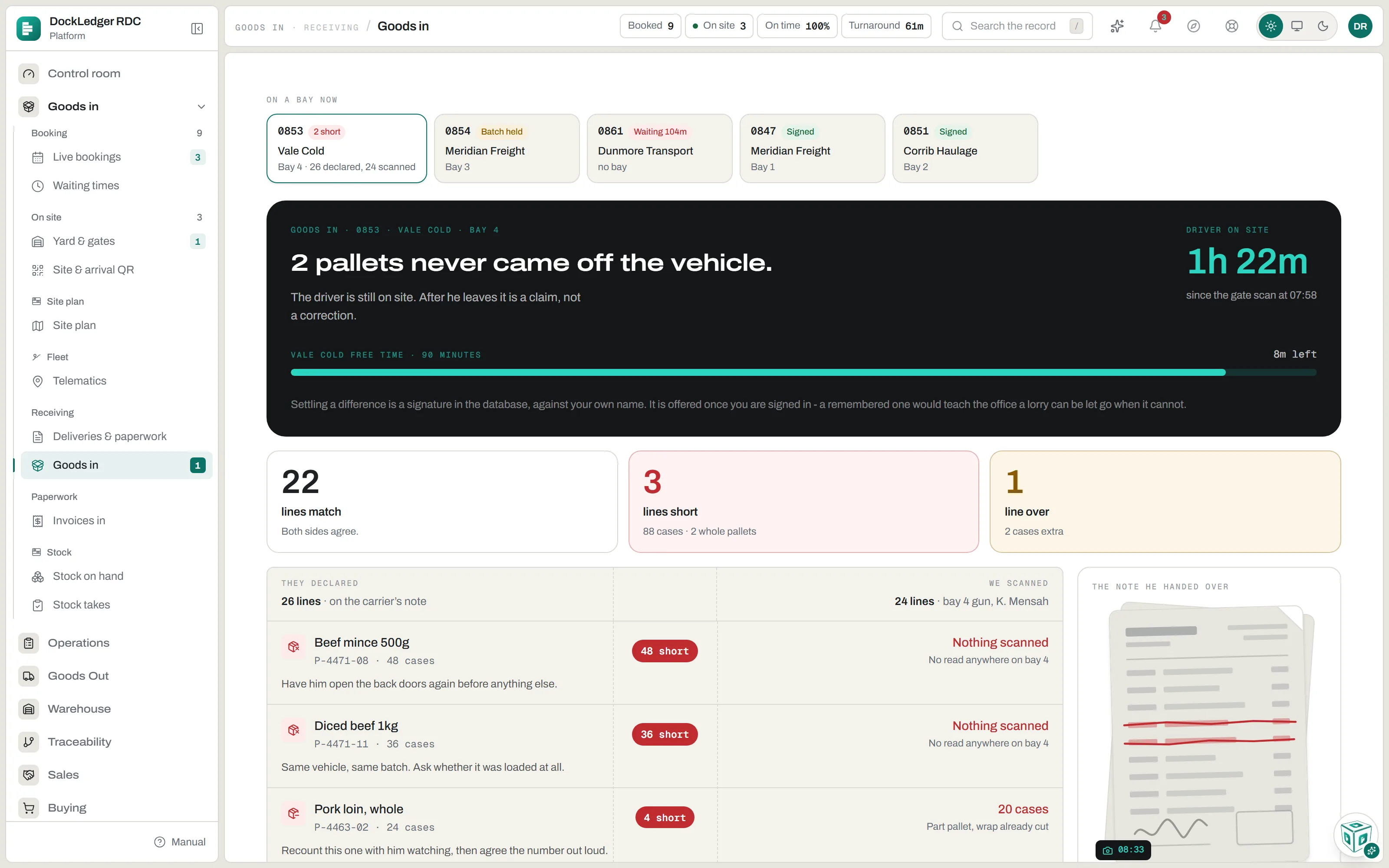
When a delivery does not match, the console puts it at the top: what is short, how long the driver has been on site, and how much of the carrier’s free time is left. After he leaves it is a claim, not a correction, so settle it while he is still at the back doors.
- Settle the difference with the driver. This is a signature: it goes in against your name, the time and your reason, and it is what lets the driver be released.
- He disputes the count. Records his side in his words. The release stays blocked until somebody accepts the difference.
- Raise a claim with the supplier. Pre-filled from the difference and sent by email with the photographs. See Paperwork & evidence.
- Send it back to the checker. Reopens the check on the floor with your words in its note, and marks any uploaded paperwork as rejected for the same reason.
Settling is only offered to someone signed in as themselves, because it is a signature.
The release gate
Step 3: put it away
Every pallet scanned off a lorry waits on the dock until it has a slot. The Goods in screen lists them oldest first, and flags chilled or frozen pallets that have waited more than 30 minutes. The same list is the reach trucks’ Put away tab, in the same order. The driver scans the pallet, then the slot label on the beam, and the pallet has an address: the slot knows what is in it, the racking shows it, and stock can find it. A checker can do the same from the Put away tab in their app, and the office can put a pallet away from the console. Slot labels are printed from the racking; see Racking & slots.
At the goods-in bench
On a device set up as the bench, the app scans the box rather than the pallet: what is in it, what it weighs, its lot and use-by, and which plate it is going on. A code nobody has seen is taught once, and remembered for that supplier. The bench’s Orders tab lists purchase orders still owed: Arrived tells buying it is in, Not here tells them it is late.
No signal on the dock
Where this fits: Goods-in software and Warehouse management for food