Meat traceability moduleLabels & design · the cutting room app
Finished products are written once, in the office
Everything that goes on a pack comes from a spec the office keeps under Traceability → Labels & design, in Finished products. Press Add a product and fill in its name, species, shelf life in days, nominal pack weight, storage, cooking instructions, allergens, a GTIN if you have one, and a photo. The photo is the one the butcher sees on the product’s tile at the bench.
A spec must be signed off before a single label prints from it. Pressing Sign off confirms the shelf life, cooking instructions and allergen line are correct, so whoever answers for what is on the pack is the one who approved it, not the person standing at the bench. Edit a signed-off spec and it has to be signed off again before it prints.
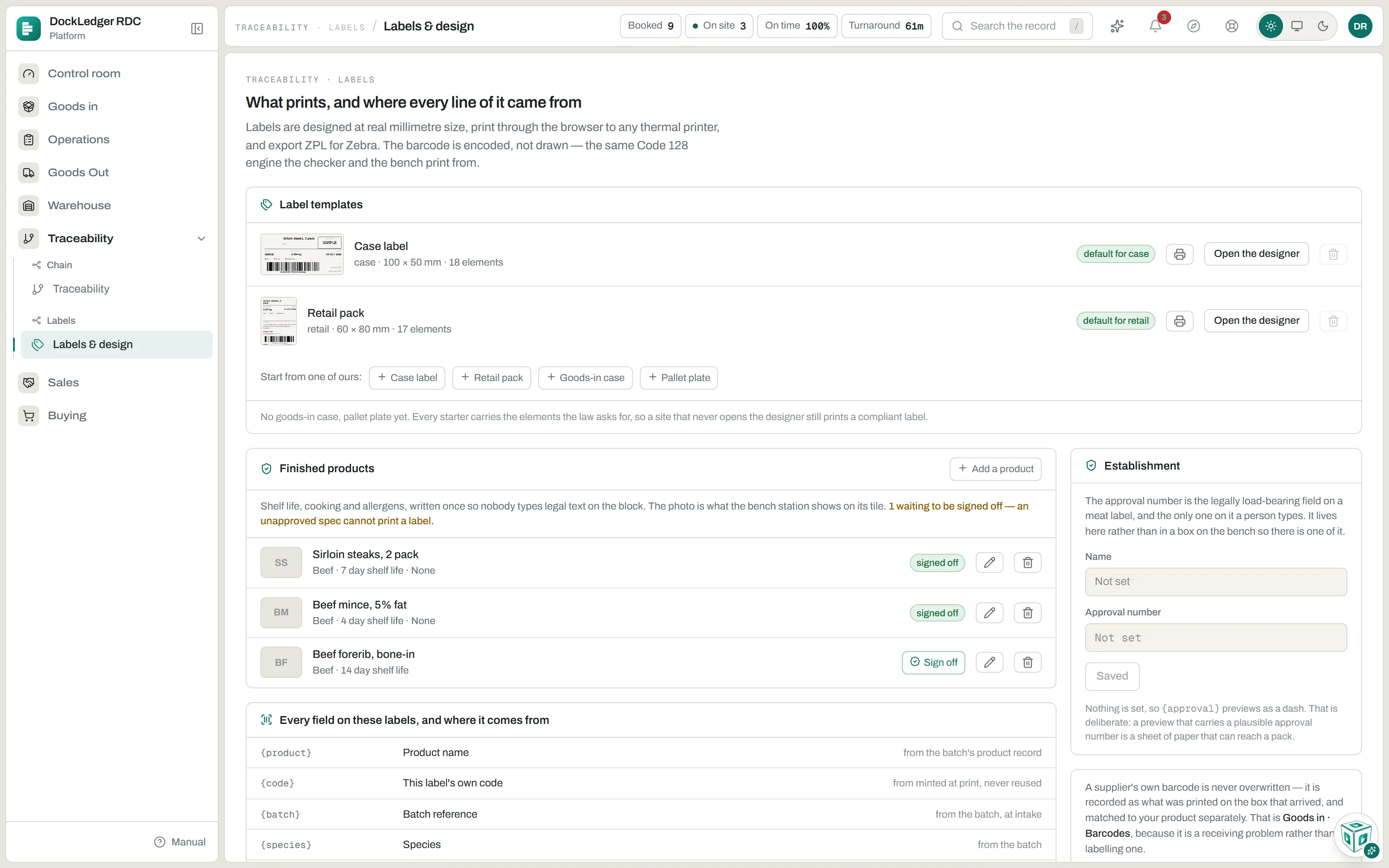
Your labels, and where every line comes from
The same page holds your label templates. Start from one of DockLedger’s four (case label, retail pack, goods-in case, pallet plate); each already carries what the law asks for, so a site that never opens the designer still prints a compliant label. One template of each kind is the default, and Make default changes which.
Beside them, your own establishment: your plant’s name and approval number. It is the one line on a label that a person types, and the one an inspector checks first, so it lives here rather than in a box at the bench. Underneath, a table lists every field a label can carry and where its value comes from: the batch, the spec, the scale, the clock or the establishment record.
The label designer
Open the designer on a template. Labels are designed at real millimetre size, so what is on the screen is what the printer feeds. Add text, a barcode, your logo, a box or a line from the bar at the top, drop in fields such as product, weight, use-by, origin, cutting plants, approval, cooking and allergens, and drag them where you want them (arrow keys nudge by 0.1 mm, Shift by a whole millimetre). The logo is the one set under Settings → Site → Branding; change it there and every label follows.
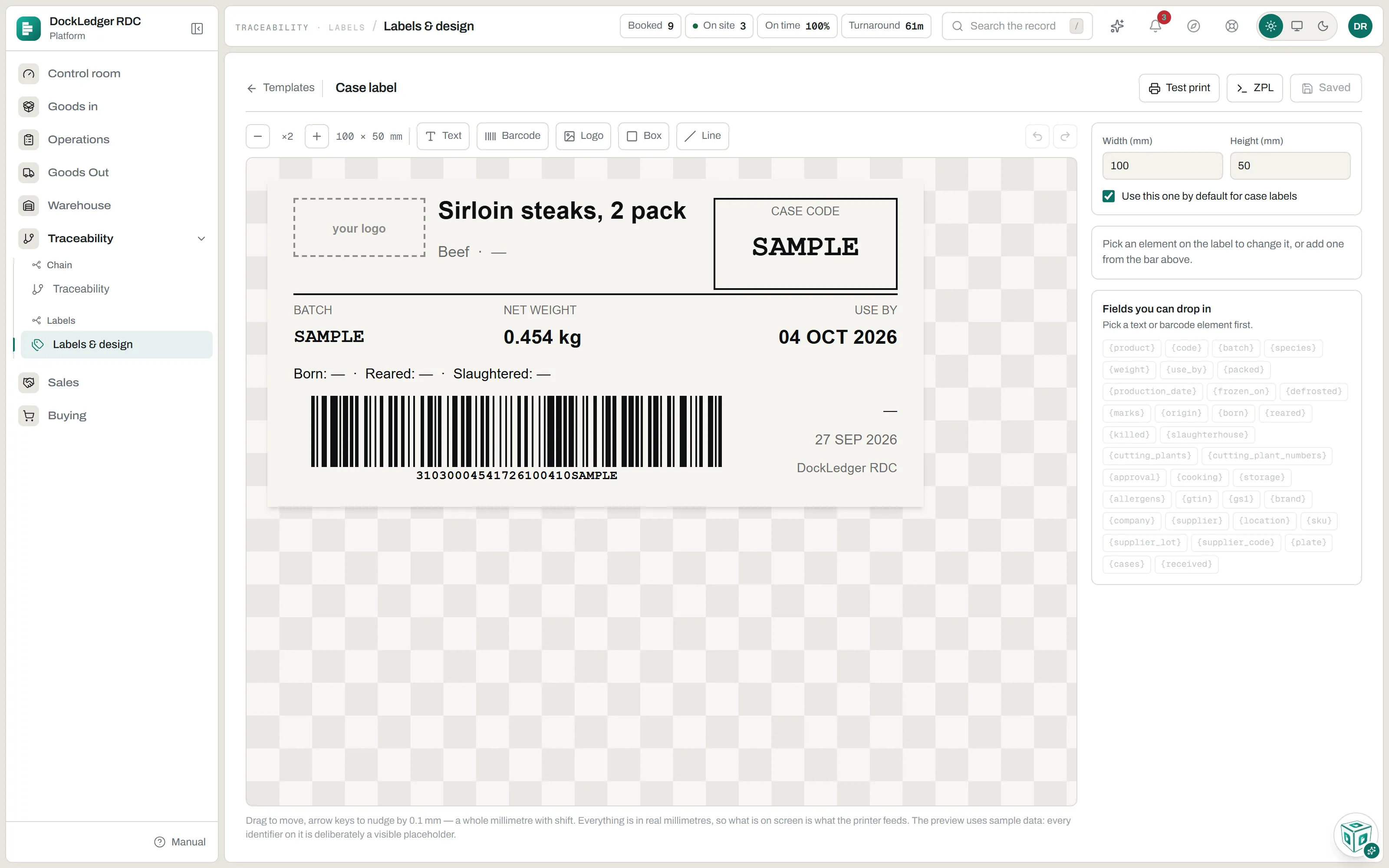
Nothing is saved until you press Save, so a half-finished drag never reaches a label. Test print prints two sample labels, watermarked, through the browser’s print dialog to any label printer with a driver. ZPL gives the same label as ZPL for a Zebra printer.
The cutting room app
The cutting room works from dockledger.app/cut, on the computer at the bench or on a phone in a gloved hand. The butcher takes boxes off the rack, says what they made, and DockLedger records the step and issues a code for every pack.
Each computer or phone running the cutting room takes a bench licence, the same as a bench station; see Bench station.
- Take a box off the rack. Scan the DockLedger code on the box, or type it. It comes out of stock and lands on your bench, and the screen shows what it is before a knife touches it: product, weight, batch, use-by and where it came from. Scan as many boxes as the job takes.
- Pick what you made from the product tiles. Only signed-off specs of the right species can be picked; a locked tile says why.
- Say how many packs and the total weight. With a scale connected, put the output on it and take the weight off the scale; otherwise type it. The trim and yield are worked out as you type, and a total heavier than what went in cannot be recorded. Add a note if it helps.
- Record it. The total is split evenly across the packs, and the Made screen shows the new batch, what went in and out, the yield, and each pack’s code and weight with every line that belongs on its label.

The app stops the wrong box being cut, on the spot rather than afterwards:
- A box past its use-by, or from a batch on hold, cannot go into a run.
- Beef that has already been cut in three plants cannot be cut here, because a label may name at most three.
- A box with no origin is flagged: packs cut from it must not be labelled for retail until the office fills the batch in.
- A pack never outlives what it was cut from. If the spec's shelf life would run past the meat's own use-by, the packs carry the meat's date, and the screen says so.
Each person’s bench is their own. Boxes someone else has taken out show under Open elsewhere with who took them and when; they cannot be cut into your batch unless you press Move onto this bench. Put back returns a box to stock. Made today lists the last thirty runs, each opening to its packs.
The cutting room does not print
Where this fits: BRCGS traceability software