Every planSettings → Integrations · Contacts → In Xero
Connect your accounting system once and what leaves the building is invoiced without anyone typing it in again. Xero and Sage Accounting connect with a sign-in; SAP Business One connects with details your SAP partner gives you. One organisation per system per workspace, and only an owner or manager can connect or disconnect one.
Connecting Xero or Sage
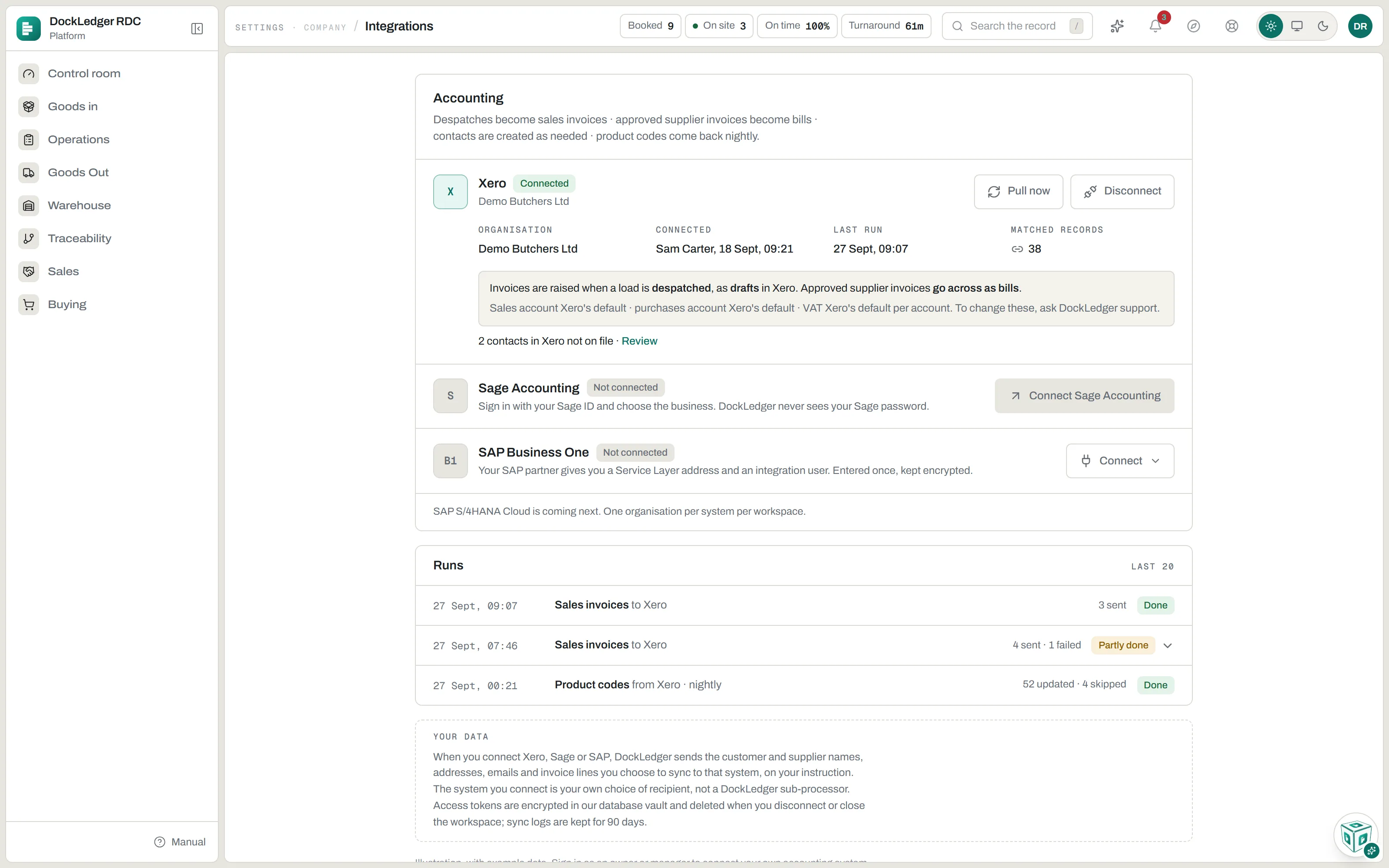
- Open Settings → Integrations and press Connect Xero or Connect Sage Accounting.
- Sign in on Xero’s or Sage’s own page and allow DockLedger in. DockLedger never sees your password.
- If your sign-in can see more than one organisation, the row asks which one DockLedger sends to. Pick it.
- The row turns to Connected and shows the organisation, who connected it and when, the last run and how many records are matched. The first run starts a few minutes later.
For SAP Business One, press Connect on its row and enter the Service Layer address, company database, integration user and password. DockLedger tests the sign-in before it saves anything, and keeps the details encrypted.
What DockLedger sends
- A sales invoice for every despatch. It is billed on what actually left: the despatch, not the order, so a catchweight load is invoiced at the weight that went on the vehicle. Invoices go across as drafts unless you agreed otherwise, and are raised on despatch or on delivery, whichever your connection is set to.
- A bill for every approved supplier invoice. Approve it on Invoices in and it goes across on its own.
- The customer or supplier: matched to the one already in your accounting system by account number or name, or created there the first time one of their invoices needs them.
The connected row says exactly how yours is set: when invoices are raised, whether as drafts or submitted for approval, whether bills are sent, and the sales and purchase accounts and VAT used. These are set with DockLedger support rather than on the screen, so write to us from Help if one needs changing.
Nothing waits for you to remember. A despatch or an approved invoice is queued the moment it happens and sent within about a quarter of an hour. If one cannot wait, or failed and has now been fixed, Send to Xero now (or Sage, or SAP) on its own row on Goods Out or Invoices in sends it straight away. Once it has gone, the button shows the accounting system’s own invoice number instead, so nobody sends the same load twice to check.
What DockLedger reads back
Every night at 03:05 (UK winter time, so 04:05 in summer), and whenever you press Pull now on the connected row, DockLedger reads two lists from your accounting system:
- Product codes. Each item is matched to your product with the same code or SKU, and its code and sales price are brought across. A price you typed in by hand is never overwritten, and an item with no matching product is left alone.
- Contacts. A contact that matches one of yours on account number, or on a name only one of your contacts has, is linked to it. Every contact is also copied into a review list, so you can see who your accounting system knows about that you do not.
The In Xero list: contacts you choose to bring in
Contacts from the accounting system are never added to your contact book by themselves. They wait on the Contacts screen under their own pill, In Xero (or In Sage Accounting, or In SAP Business One), with a count of how many are not yet on file. The connected row on Integrations says the same thing and has a Review link that opens it.
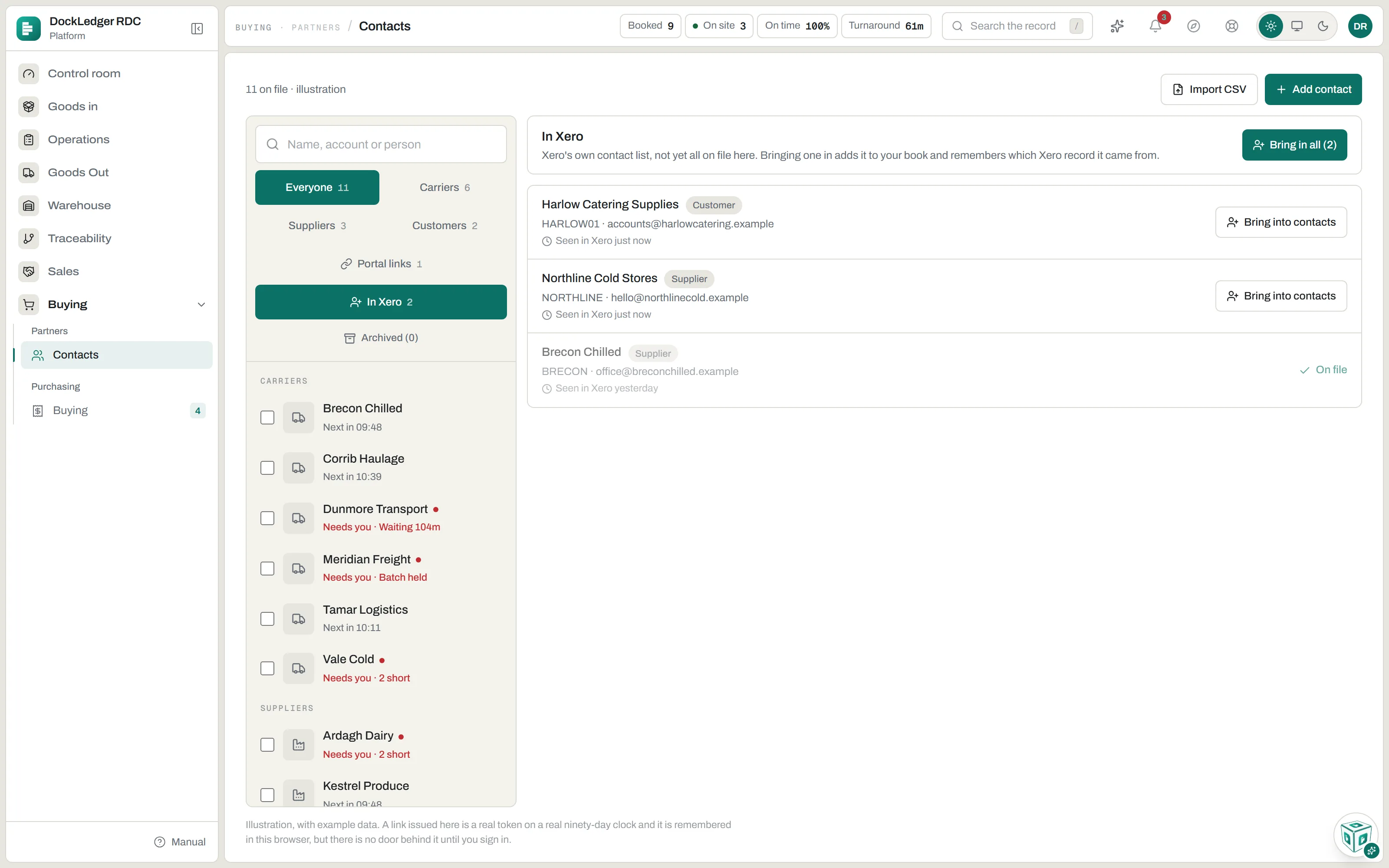
Each row shows whether the other system calls them a customer or a supplier, their account number and email, and when it was last seen there. Press Bring into contacts on one, or Bring in all at the top, and they are added to your book and remember which accounting record they came from. A contact already on file says On file and opens it. Everyone can read the list; only an owner or manager sees the buttons.
Runs, and when one goes wrong
Under the connections, Runs lists the last twenty: sales invoices, bills, contacts or product codes, which direction, whether it was nightly or sent by hand, and how many were sent, updated, skipped or failed. A run marked Partly done or Failed opens to say what was refused and why, in a sentence, with an Open link to the despatch, invoice, contact or product so you can put it right. A connection whose sign-in has expired shows Needs attention with the reason; disconnect it and connect again to sign in afresh.
Disconnecting
Webhooks and the orders API
For a WMS, TMS, ERP or EDI hub of your own there are two more doors. Webhooks tell your system the moment something happens on the dock: a slot requested, approved or moved, a vehicle arriving, checked, released or departing, a no-show, order and purchase-order events. The orders API lets an EDI hub or a customer’s system post orders in; a key tied to one customer can only order for that customer.
Neither has a tab on the Integrations screen yet, so they are set up with us. Write to the team from Help, say which system and which events, and we set up the endpoint or key with you. What your developers need to know:
- One signed POST per event, JSON. Check X-DockLedger-Signature: t= is the time and v1= is an HMAC-SHA256 of the time, a full stop and the raw body, made with your secret. The secret is shown once.
- Answer with a 2xx. Anything else is retried with a growing gap, up to eight tries.
- An endpoint that fails fifty times in a row is switched off, because nobody is listening.
If you keep an Integrations failing panel on My view, it counts the endpoints that are not answering.