PlatformAccount menu · Users & team
Everyone who works for you gets their own login, made on Users & team by an owner or a manager with Invite someone. There are two kinds, and the form asks which before anything else. Nothing is emailed in either case: DockLedger picks the password and shows it once, on screen, for you to write down or print and hand over. Give the person that password; they are asked to choose their own the first time they sign in. It is not stored anywhere it can be read back, so a lost one is replaced with New password, never recovered.
- Office: a work email and a password, for the console on a desk or a yard tablet. You choose Manager or Office for them. Only the owner can make another manager.
- Floor: a first name, a surname and, if you like, a job title. The username is made from the name (Jan Kowalczyk would be jkowalczyk) and no email is needed. A floor login opens the floor apps and nothing else.
The four roles
- Owner: everything, the bill included. Worth keeping to one or two people.
- Manager: everything structural the owner can do, short of the bill. Adds people, changes the site’s settings and switches tools on and off.
- Office: books and moves slots, releases the paperwork and settles a shortage while the driver is still on site.
- Checker: every floor login. Scans, checks, flags what is short and puts it away.
What each role can do is set out in plain sentences under What each role sees at the foot of the page, and it is decided by the role, never by the person. One line on it applies to everyone: nobody, the owner included, can change a stamp after it is signed.
Narrowing what someone opens
A floor login can use every floor app until you narrow it on their row. Picking only opens the pick app and not the goods-in apps; Checking only opens the goods-in checker; Goods in only opens the checker and the goods-in bench. Count, load, the cutting room, the bench station and the reach truck are open to every floor login whatever you set. Office logins carry a suite setting too: Full access, or the Picking, Supply or Goods Out suite. The owner always keeps full access.
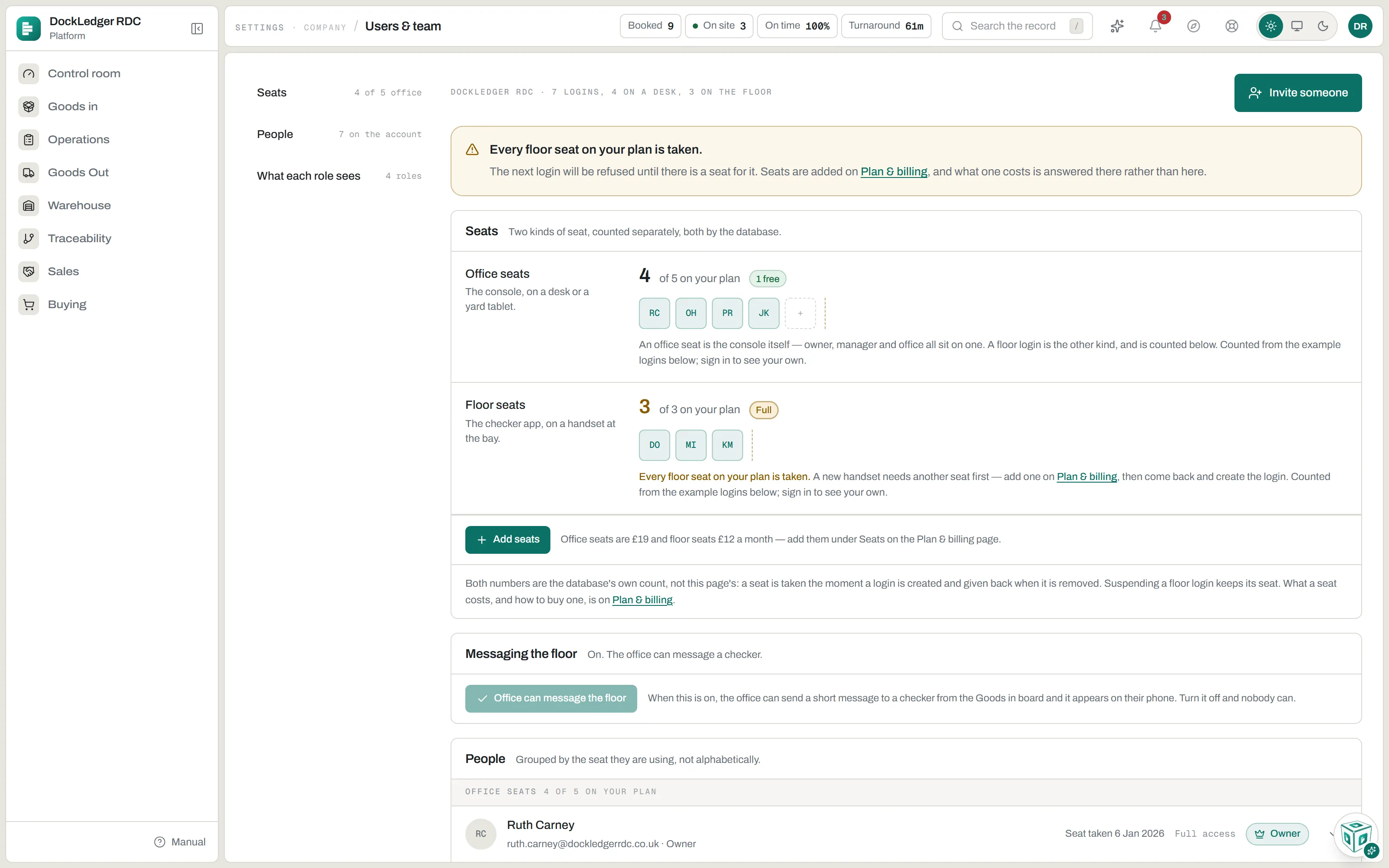
Add to buying team on an office login lets that person move a delivery to another day. Messaging the floor, a switch near the top of the page, decides whether the office can send a short message from the Goods in board to a checker’s phone.
Two-step sign-in
Two-step sign-in asks for a six-digit code from an authenticator app on your phone after your password, so a password on its own no longer opens your account. Turn it on from the account menu with Two-step sign-in: scan the square with the app, type the code it shows, then keep the eight recovery codes somewhere safe. Each recovery code works once, in place of the app, if the phone is lost. From then on the console, the ordering pages, every support desk login and a floor login signed in by name all ask for the code after the password, and so does setting a new password.
An owner or a manager can require it for everyone under Two-step sign-in on Users & team. Owners, managers and office users are then asked to set it up the next time they sign in and cannot open the console until they do; checkers are not made to, though they may choose to. Floor apps signed in with a station key, the wallboard and portal links never ask for a code, so the login a wallboard TV uses must be one without two-step sign-in turned on. The same section lists who has it on, and Reset beside a person clears theirs so they can set it up again on a new phone. A manager can reset office users and checkers; only the owner can reset a manager or another owner, and nobody can reset their own here. Somebody who signs in to more than one workspace uses a recovery code instead.
After the code, DockLedger asks whether to trust this device. Press Trust for 30 days and that browser does not ask for the code again until then. An owner or a manager can change Devices can be trusted for on Users & team to 7 or 90 days, and the button then says that number, or to Never, which asks everyone for the code at every sign-in. Only trust a computer or phone that is yours; floor apps and bench stations never ask to trust a device. Every support desk login asks for a code every time. A new password and turning two-step sign-in off still ask for a fresh code on a trusted device, because the sign-in service itself insists on one. Settings, Profile lists every device you have trusted with Forget beside each, and Reset on Users & team forgets all of a person’s devices.
Seats
The plan includes 5 office seats (owner, manager and office all sit on one) and 3 floor seats; a trial has room for ten floor logins. The page draws each seat as a block with a dashed line where your plan stops, so you can see when it is full. A full plan refuses the next login rather than charging for it: add seats on Plan & billing first (an extra office seat is £19 and a floor seat £12 a month), then come back and create it. Drivers, carriers, suppliers and customers never use a seat.
When someone leaves, suspend their floor login, or press Remove on their office login, the same day. Remove deletes an office login for good; if they also belong to another workspace they only leave yours. A suspended floor login cannot sign in but keeps its seat, and Let them back in restores it. Anyone can delete their own login under Settings, Profile. Owners close the workspace instead.
Portal links are keys