PlatformContacts → Portal link
Each carrier and each supplier gets one private link. Send it to their transport office or despatch desk and they can do their own admin without ringing you: ask for slots, send a driver, see what has changed, pick up paperwork and send you invoices. There is no account and no app. The address is the key, so treat it like one: only owners and managers can give out a link, see it or copy it.
Giving a partner their link
- Contacts → open the carrier or supplier → Portal link → Give them a portal link.
- Press Copy and send it however you normally talk to them, or Email it to start an email to their first contact with the link in it.
- The link runs out after ninety days. Another 90 days on the same panel keeps it going; nothing about the address changes.
The chip at the top of the contact says where things stand: Portal open, Link not working or No portal access. Revoke stops the page working straight away but keeps the link on the panel, so you can renew the same one later. Delete removes it for good; they would need a new link at a new address. Archiving a contact revokes its link.
What they see
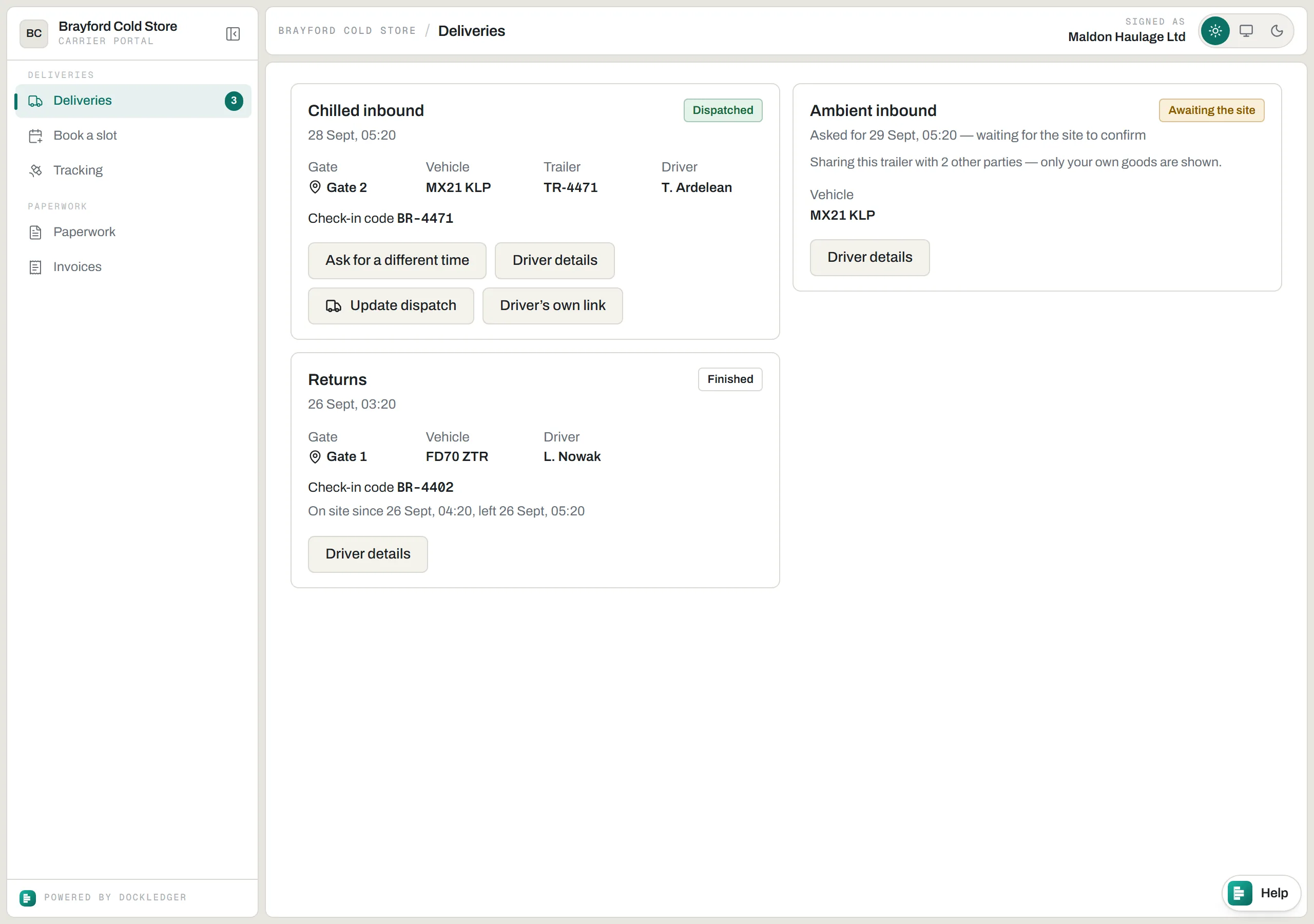
The page leads with your name and logo; DockLedger appears only in a small ‘Powered by’ line and the Help pill. A carrier sees the deliveries it is carrying. A supplier sees the deliveries its goods are on, whoever is driving them. Neither can see the other’s. That is decided on the server from the link itself, not by anything the page does, so it holds however the link is used.
- Deliveries. Every one of theirs with its status (Awaiting the site, Confirmed, Dispatched, On site, Finished, and Declined, Cancelled or No-show when it is not happening), the gate, vehicle, trailer, driver and check-in code. Under “What’s changed” is every change your office made to it, with the reason in your own words. From the card they can ask for a different time, update the driver’s name and phone, dispatch a driver (saying where the load is leaving from), get the driver’s own check-in link, and reply to you when you have changed something they have not answered yet. The check-in code shows as soon as you approve the delivery, with a Copy button, so they can give it to the driver before the lorry leaves; if your site only lets a phone check in at the gate, the card says so. Under “What is on the lorry” they can list the load line by line (supplier, product, pallets, cases and batch), and the driver’s phone then asks only for what is missing; the lines can be changed until the delivery has been checked at the site.
- Book a slot. Your published diary as a week. Other bookings show as a count, never a name; their own show as “Yours”. They tap a free slot and give the vehicle registration and trailer number, plus the driver, phone and where it is coming from if they know. A supplier can name the haulier bringing it and pick the purchase order it is for; a carrier can name the supplier on the load. It arrives as a request for you to confirm. If your site has not published a diary, they say when they would like to come and the office answers.
- Open orders (suppliers only). The purchase orders you have sent them, for them to confirm line by line with a promised date. See Buying and purchase orders.
- Tracking. They can connect their own vehicle tracker so you see their booked lorries on the way in. Webfleet and Samsara connect; Microlise is listed but cannot be connected yet. Their key is encrypted the moment it arrives and nobody at your site can read it, only vehicles booked in to you are shared, and they can limit it to named registrations. Disconnecting deletes the key and the positions it shared.
- Paperwork. The documents for each delivery, once your office has finished them and shared them.
- Invoices. They send an invoice with its number and date, against a delivery if they choose, with the PDF or a photo of the page (up to 5 MB) and a note. It lands on Invoices in.
One vehicle, several suppliers
If your DockLedger subscription is not active, the portal says so at the top: slot requests and invoices cannot be sent, but their existing deliveries still show. A link that has run out, been revoked or been deleted opens a page that says only that it does not open anything, and asks them to get a fresh one from you.
The portal is in English. The driver check-in the link hands out speaks eighteen languages, and there is a written guide for your partners in eight of them under For your partners, in their language. The Help pill in the corner of every portal page reaches the DockLedger team, as it does in the console; see Getting help.
Three doors, not one
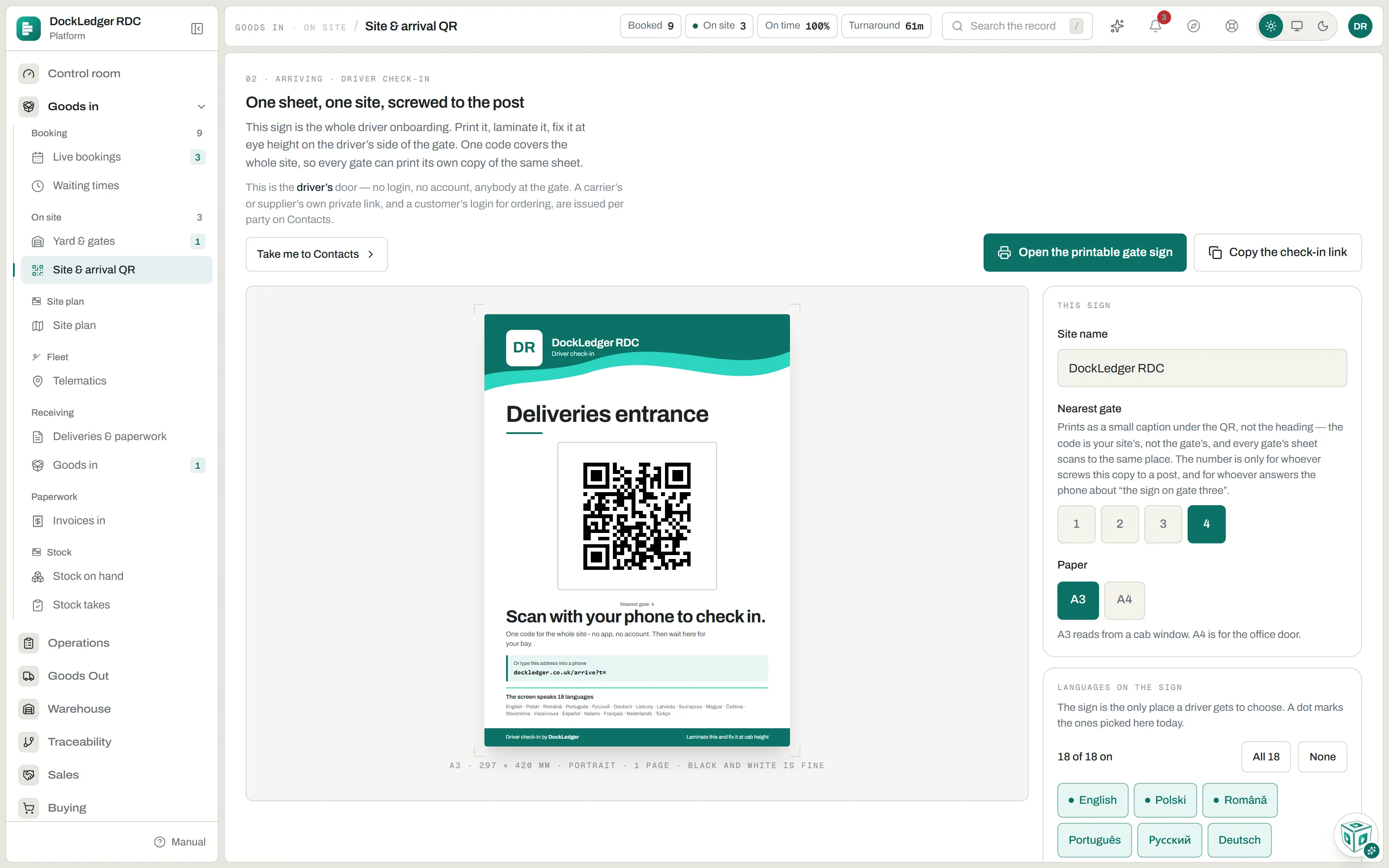
A partner’s link is one of three ways in, and they are easy to mix up. Drivers use the gate sign: one QR code for the whole site, no login, printed from Site & arrival QR. Carriers and suppliers use their private link. Customers who order from you have a login of their own at the ordering site. The second and third are both given out per company on Contacts.
Where this fits: Dock booking software