PlatformGoods in → Site & arrival QR · Yard & gates
Print the gate sign from Site & arrival QR and fix it where lorries stop, at eye height on the driver’s side. A3 reads from a cab window; A4 is for an office door. One code covers the whole site, so every gate can have its own copy of the same sheet, with a small “nearest gate” caption under the code for whoever screws it to the post. You choose which languages the sign offers. The same page copies the check-in link and lists who has checked in at the gate today.
What the driver does
The driver scans the sign with their phone’s camera. There is nothing to install and no account. The check-in page opens in any of eighteen languages, so a Polish, Romanian or Ukrainian driver reads it in theirs. They find their delivery one of three ways: the booking reference from their transport office, their registration plate, or their company name, picking the supplier shown on their delivery note. To prove it is theirs they give the booking reference or the last four characters of their registration, then their trailer or container number and a mobile number so the office can ring instead of making them queue at the window. Sharing their location on the way in is offered, and entirely their choice.
If carriers give the code to their drivers early, turn on Check in at the gate only under Settings → Site. A code then works from a phone only when the phone is within the distance you set of the site pin (250 metres unless you change it), or inside your site plan. The phone asks to share its location once, at check-in, and that position is not kept unless the driver chooses to share their location. A driver who is too far away is told to move up to the gate sign; one without a location can always check in on the gate screen or at the gatehouse. The switch needs the site pin: the pin on the map under Settings → Company → Site address.
From then on the page keeps itself up to date. It tells them how many vehicles are ahead, then which bay to drive to, then that they are unloaded and waiting for the office, and finally that they are free to go. If they close it, scanning the sign again brings them straight back.
What the office does
- They appear as Waiting for a bay. The clock starts from the moment they checked in, whether or not anyone is watching. For a driver with no phone, press Sign a vehicle in on Live bookings: it lists everyone booked today who is not here yet, and one press stamps the time and your name.
- You send them to a bay. On Yard & gates, drag their card onto a door, or press Send to a bay. From Live bookings or the record, choose one from Assign a bay. The driver’s phone shows it straight away. A bay that cannot take the load says why instead of accepting it: occupied or held for another booking, a dispatch door for a delivery, a door that takes a different category, or out of service. Moving a vehicle from one bay to another asks for a reason.
- The load is checked. The checker counts it off in the checker app, takes photographs and the driver’s signature, and sends it to the office. See Goods in, step by step.
- The office releases them, and the gate signs them out. Release says the paperwork is done; Sign out says the vehicle has left. If what came off does not match what was declared, release is blocked until somebody in the office accepts the difference against their own name. Neither can be taken back.
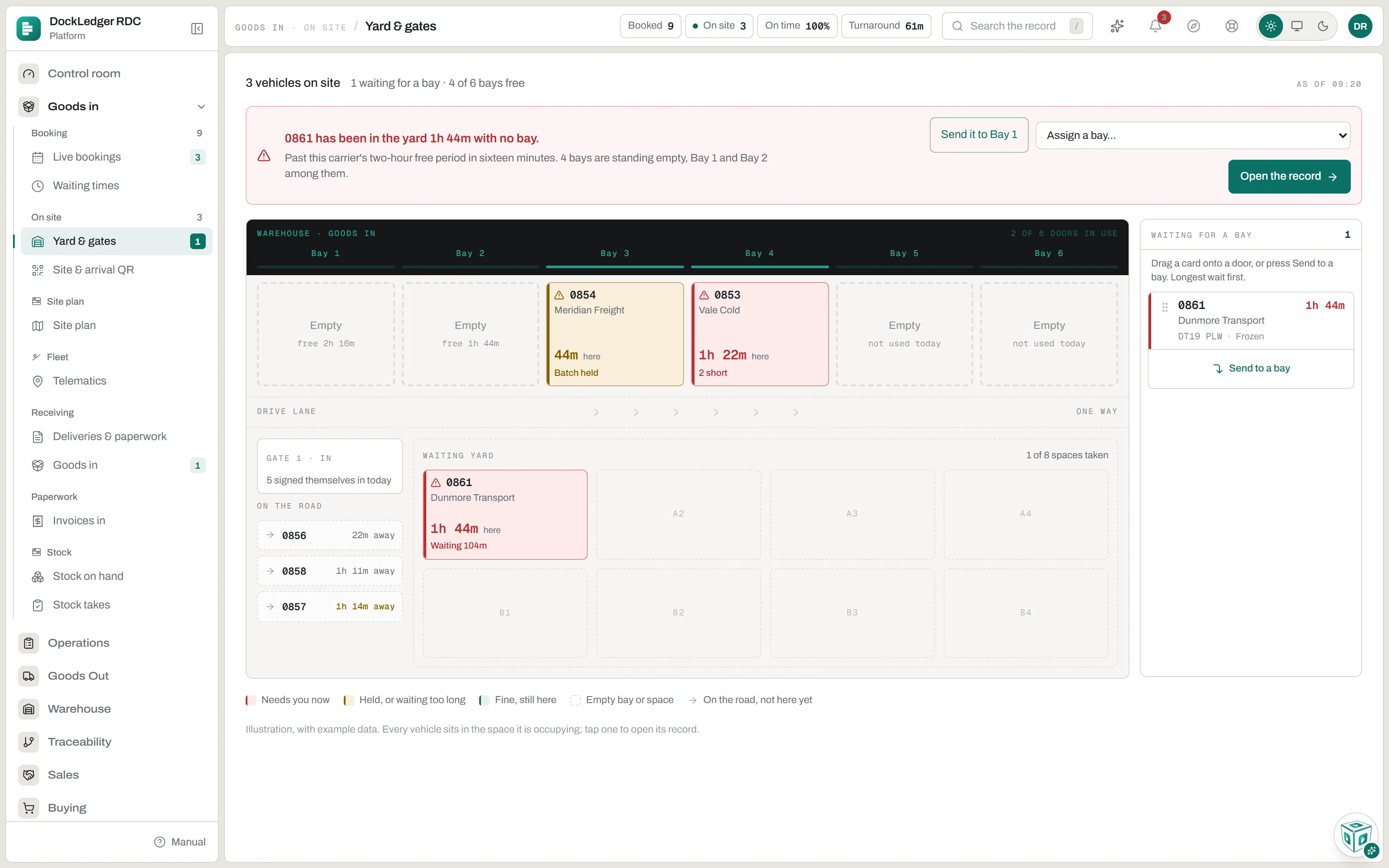
Yard & gates draws the site as it stands: each bay as a door with who is on it and for how long, the waiting yard, and the vehicles still on the road with how far away they are. The longest wait is on the right, first in the list. When someone has waited too long a banner says so, how close they are to the carrier’s free time, and which bays are standing empty. Underneath, the gate actions: vehicles to release, vehicles to sign out, and vehicles past their slot that never arrived.
- No-show is a judgement about the carrier, and it goes on their record.
- Call it off is a decision by the office, and the carrier is told your reason. Use it when you stood the delivery down yourself, so the carrier is not blamed for it.
Yard & gates comes with the Warehouse & racking module. Without it, bays are still assigned from Live bookings and the record. Bays themselves are set up under Settings → Site → Bays and gates.
Waiting times
Waiting times, next to Live bookings, is the same clock added up: average and longest wait, who is waiting now, and each carrier’s median and worst against their free time. Free time runs from the later of the booked slot and the arrival, so arriving early earns nothing. The sign-in log filters by haulier and by length of wait, exports to CSV, prints, and opens the evidence pack for any vehicle. Free time and the detention rate come from the carrier’s own terms in Contacts, or the site’s under Settings → Site → Waiting-time terms where they have none.
On a TV in the transport office
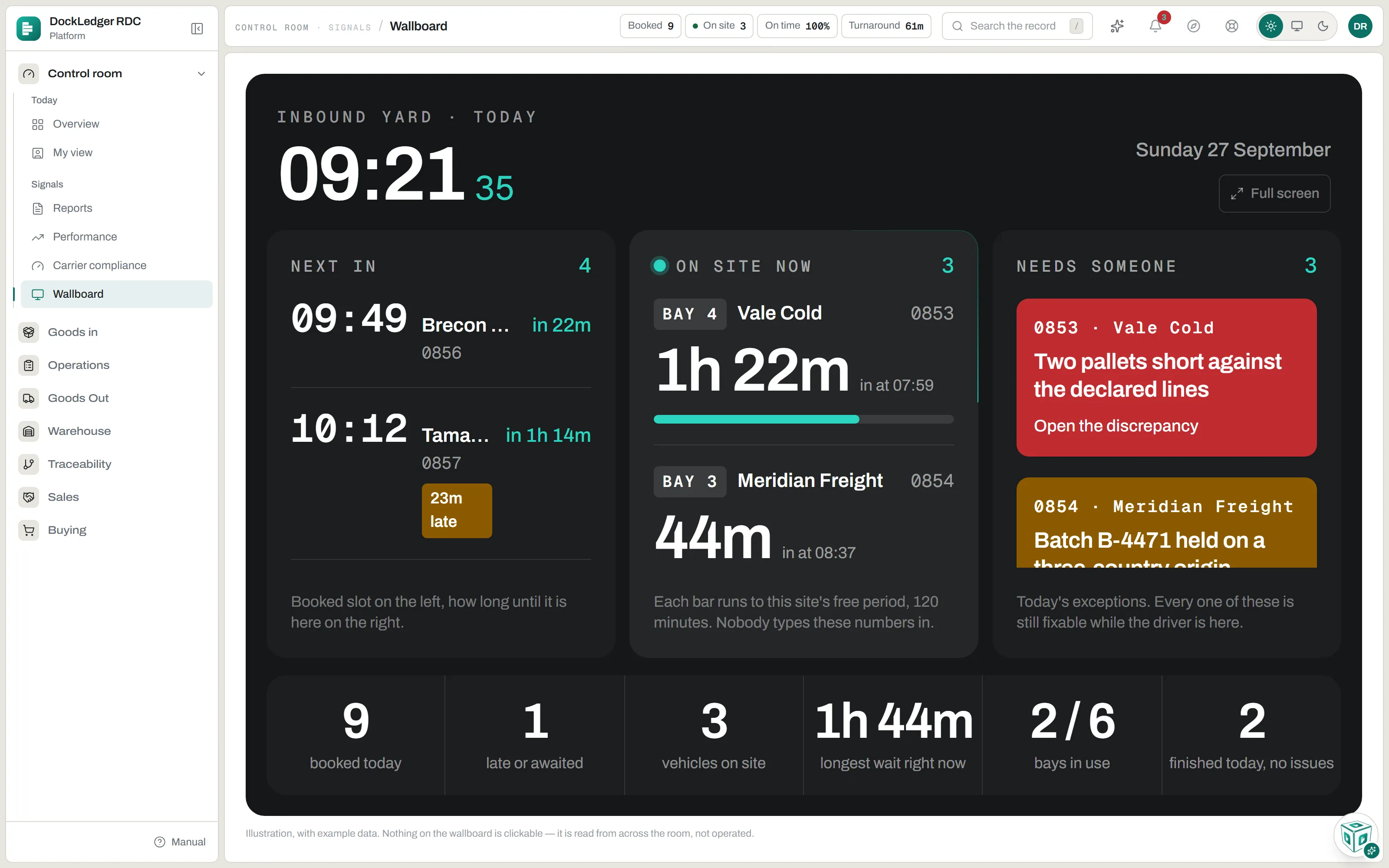
The wallboard is the yard for reading across a room: who is next in and how long until they arrive, who is on which bay with a bar running to the free period, and the exceptions that are still fixable while the driver is on site. Nothing on it is clickable. Open it from Control room → Wallboard, or put it on a television with a TV link from Settings → Site → Show the wallboard on a TV. A TV link opens the board with no sign-in; make one per screen, so you can pull a single television without touching the others. The link is shown once only, and only owners and managers can make or pull one.
Why the waiting clock matters
Where this fits: Dock booking software