The first ten minutes
- Start the free trial. Go to dockledger.app/signup. It asks three things: who you are (your name and work email), your site (the company and what you call the site), and a password. A workspace is one site: its bookings, its contacts, its stock. Nobody outside it can see any of it. The trial is 14 days, or 30 if you are setting up a warehouse or meat traceability, and it needs no card.
- Leave “Start with example data” ticked. It is on the same step as the password. Your console opens with a week of realistic bookings, contacts and stock already in it, so you can see how every screen behaves before you type anything of your own. On the Live view one of the example lorries drives from the gate to its door, a step every half minute, as its driver’s phone would show it.
- Confirm your email. We send a link and a six-digit code to the address you gave. Press the link, then Confirm and continue, or type the code on the sign-up page.
- Look around, then clear the examples. While example data is in the workspace a bar across the top of every page says so, for everyone. When you are ready, the owner presses Clear example data on that bar (or opens the account menu, top right, and chooses Example data). Only the examples go; anything you typed yourself is never touched.
- Work through Getting started. The compass button in the header opens a checklist of seven jobs: add your loading bays, add your carriers and suppliers, load your products, put your first booking on the board, print the arrival sign, set your waiting-time terms, and add your floor team. Each one ticks itself the moment the work is done, here or anywhere else in the console. Skip what you do not need.
The checklist opens by itself the first time an owner or a manager signs in. Hide for now puts it away on this computer; Don’t show again puts it away for the whole workspace. It is always one press away on the compass, and so is the tour, which goes round the console pointing at the real controls one at a time. Office users get the tour from the compass instead of the checklist, because setting up the site is not their job.
Finding your way around
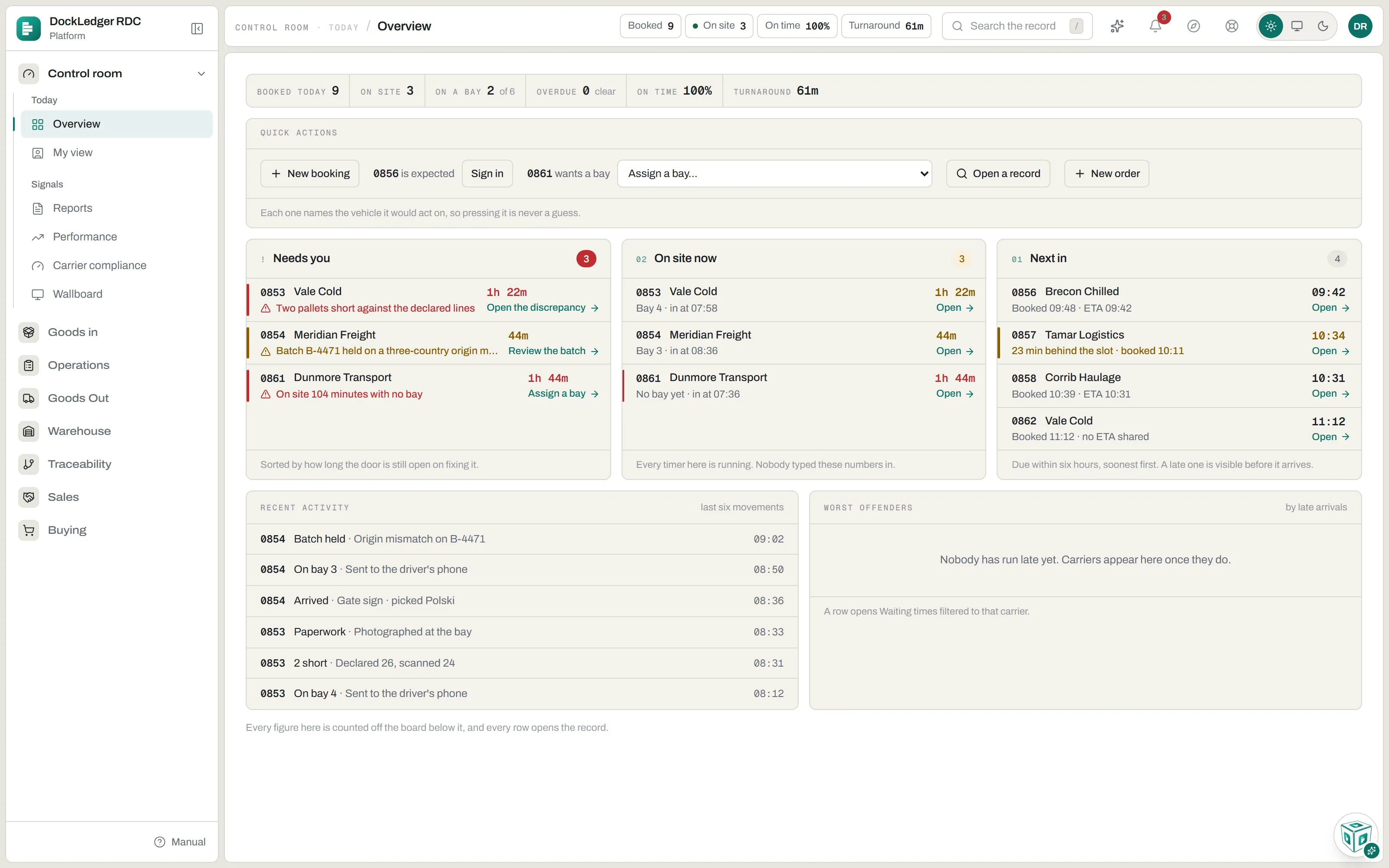
The rail down the left is grouped by the work, not by the software. Open a section and its pages show underneath; only one section is open at a time.
- Control room: Overview, My view, Reports, Performance, Carrier compliance and the Wallboard. Views across the whole day.
- Goods in: the whole arrival. Live bookings and waiting times, Yard & gates, Site & arrival QR, the Site plan, Telematics, Deliveries & paperwork, Goods in, Invoices in, Stock on hand and Stock takes.
- Operations: the Pick board and Reach trucks.
- Goods Out: loading bays, your own vehicles and what went out on them.
- Warehouse: Products and Barcodes, the catalogue of what you store and how it scans.
- Traceability: batches, recalls, and Labels & design.
- Sales for customer orders, and Buying for Contacts and purchase orders.
The company settings are in the account menu at the top right rather than the rail: Site, Users & team, Plan & billing, Mobile apps, Your workspaces, Integrations and Settings & preferences. Across the header you also have today’s figures, Search the record (press / from anywhere, then type a page name or a booking reference), the bell for notifications, and the life ring for Help.
A section your plan does not include still shows, with a lock on it, so you can see what it would add. A page your site has switched off under Workspace tools is not shown at all. To give the page more room, collapse the rail to its icons with the button beside your site’s name; Settings & preferences decides whether it starts expanded on this computer.
A reference opens its record