Most of this is done once, by an owner or a manager, from the account menu at the top right and the Site page it opens. The Getting started checklist on the compass covers most of the same jobs and ticks each one off as you do it.
The site itself
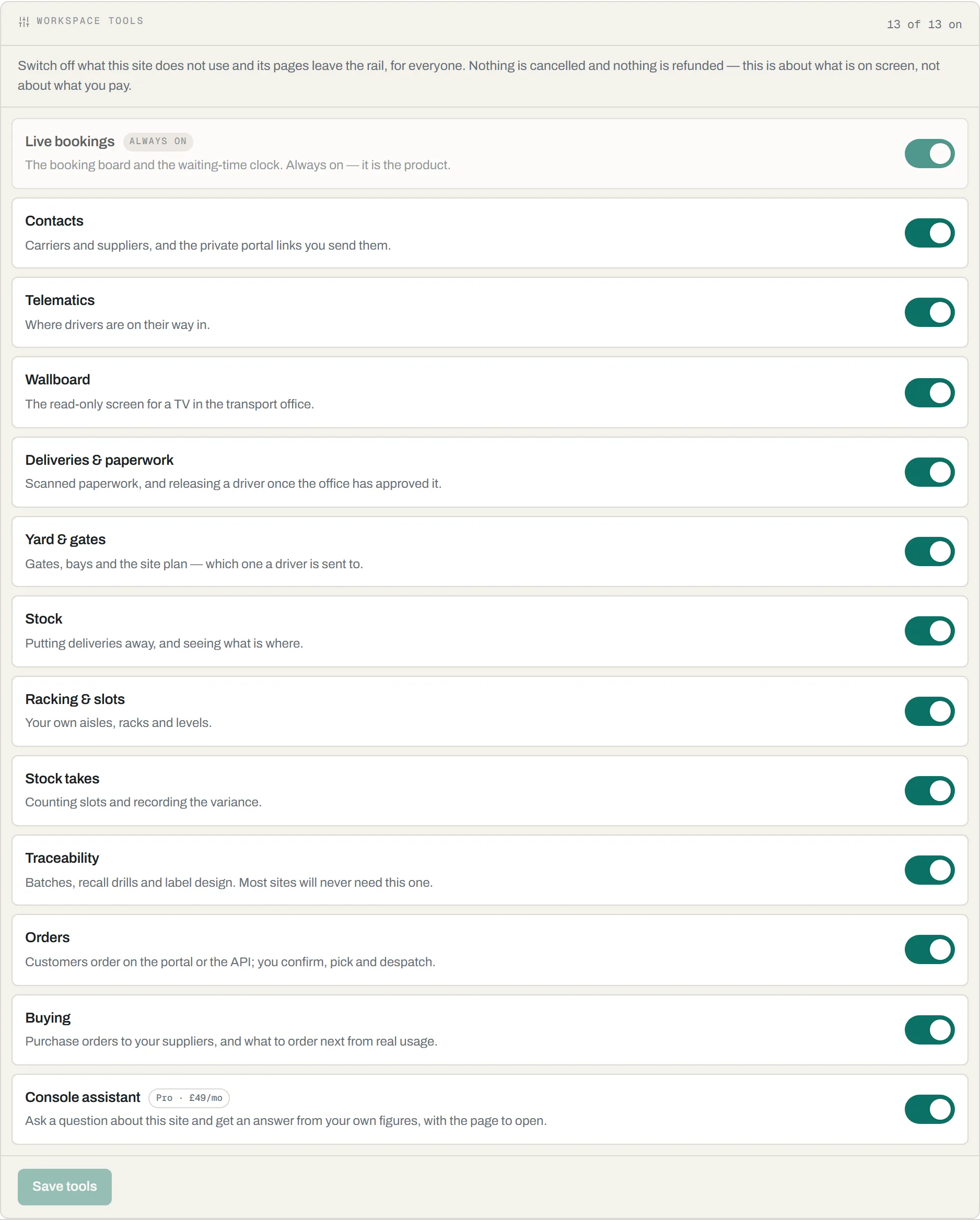
- Switch off what you don’t do. Account menu → Plan & billing → Workspace tools. Turn off anything this site does not use and its pages leave the rail for everyone. It changes what is on screen, not what you pay.
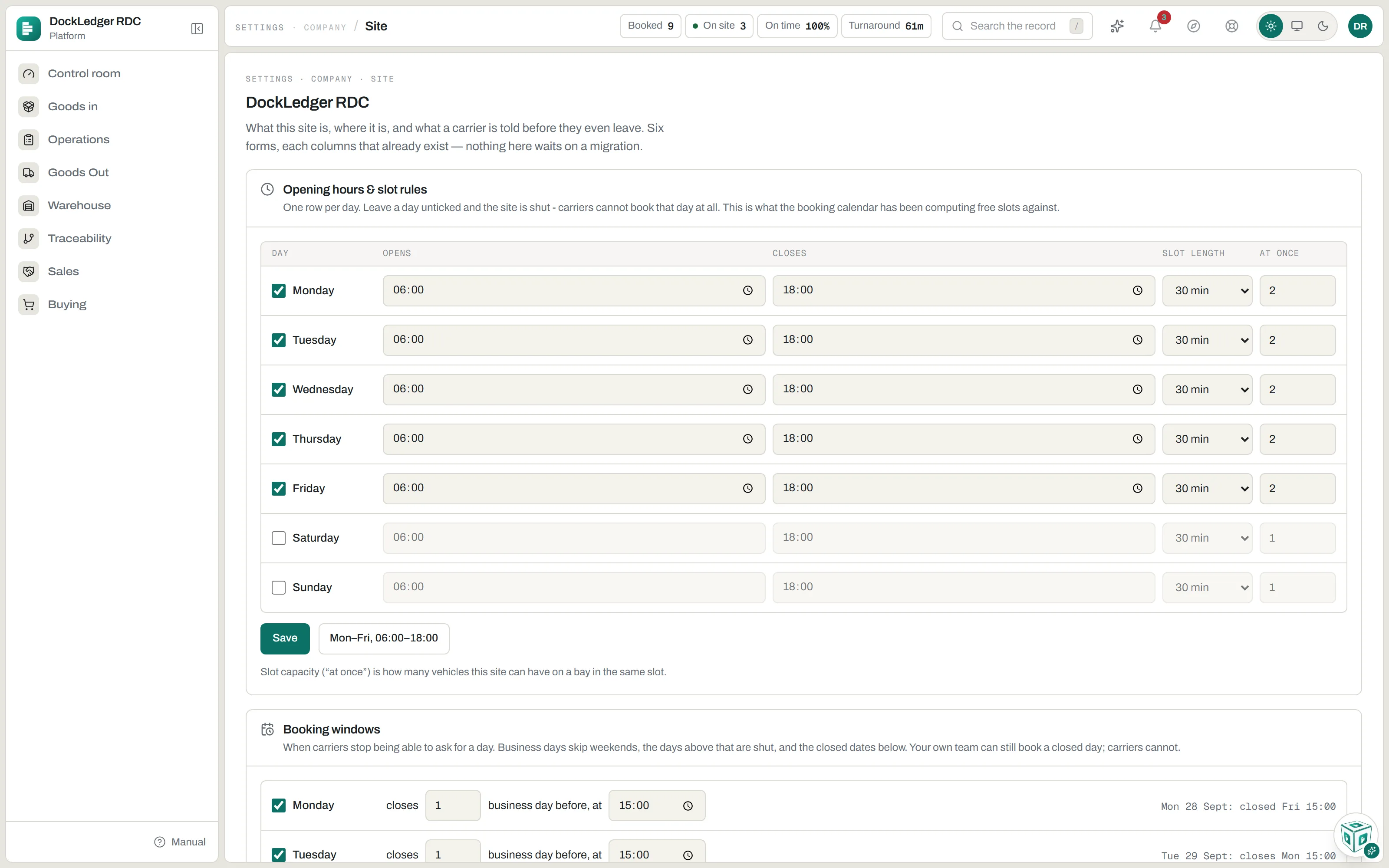
- Set your opening hours. Account menu → Site → Opening hours & slot rules. One row per day: when you open and close, how long a slot is, and how many vehicles you can take in the same slot. Leave a day unticked and carriers cannot book it at all. Booking windows, underneath, says how far ahead a carrier has to ask for a day; your own team can still book a day that is closed to carriers.
- Add your bays. Site → Bays and gates. A bay is a dock door a vehicle is sent to. Name each one the way the site does, “Dock 3”, “Bay B”, “Chilled 1”, because that is what the driver’s phone will tell them.
- Fill in your site details. Site → Site details: the address, opening hours, a phone number for drivers and what to do on arrival. The address prints on your evidence packs and delivery notes. Your own branding, further down, puts your logo on labels, purchase orders, evidence packs and the gate sign. If you use telematics, set Site location too: ETAs are measured from that point.
- Set your waiting-time terms. Site → Waiting-time terms: how much free time a vehicle gets and your detention rate per hour after that. Without a rate an evidence pack can prove the wait but cannot put a figure on it. A carrier with its own terms on Contacts overrides these.
Plan & billing · Workspace tools
Settings · Site
At the gate
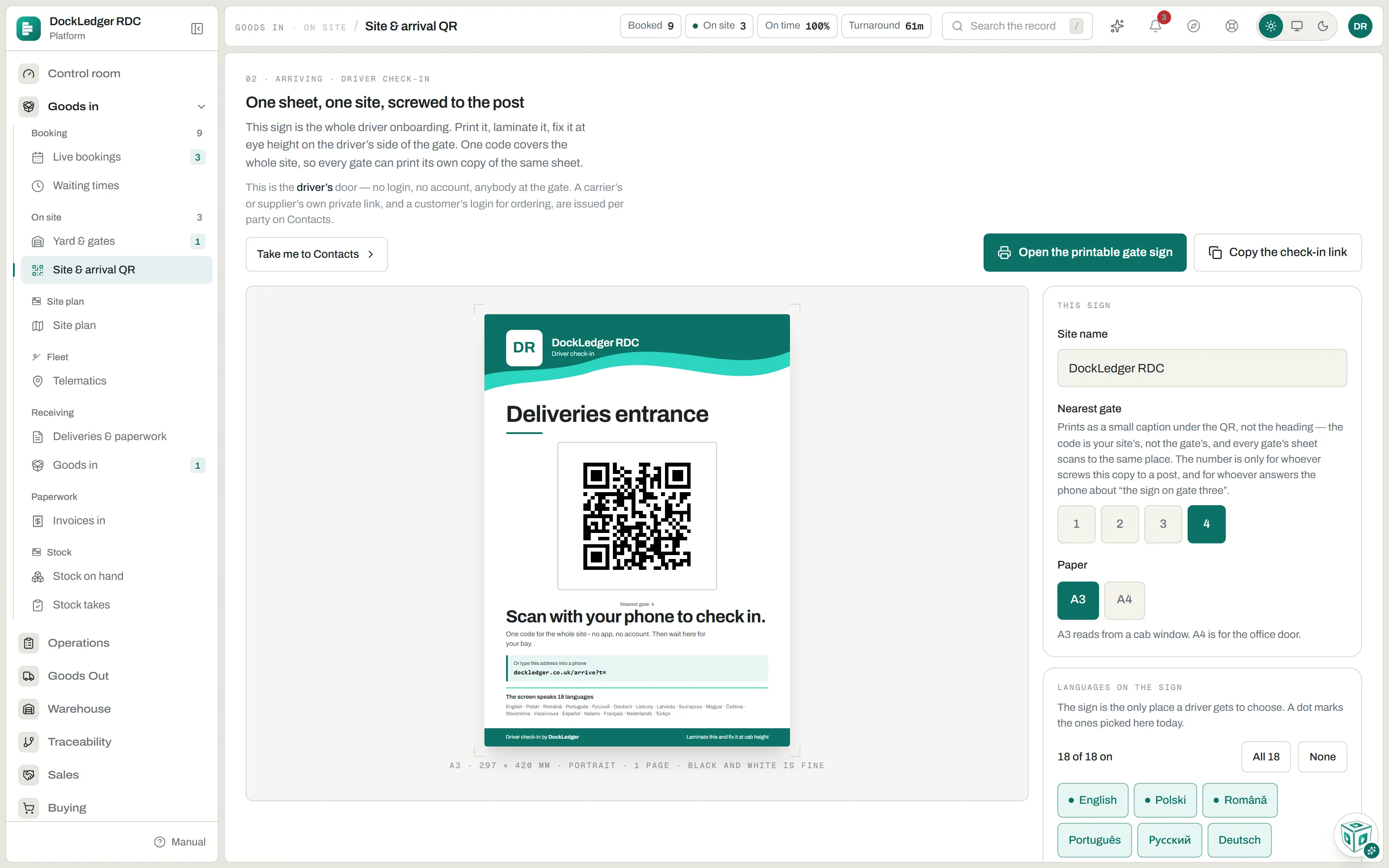
- Print the gate sign. Goods in → Site & arrival QR → Open the printable gate sign. One code covers the whole site, so every gate can have its own copy of the same sign. Pick the nearest gate for the caption, A3 or A4, and which languages the sign lists. Laminate it and fix it at cab height.
Goods in · Site & arrival QR
Carriers, suppliers and customers
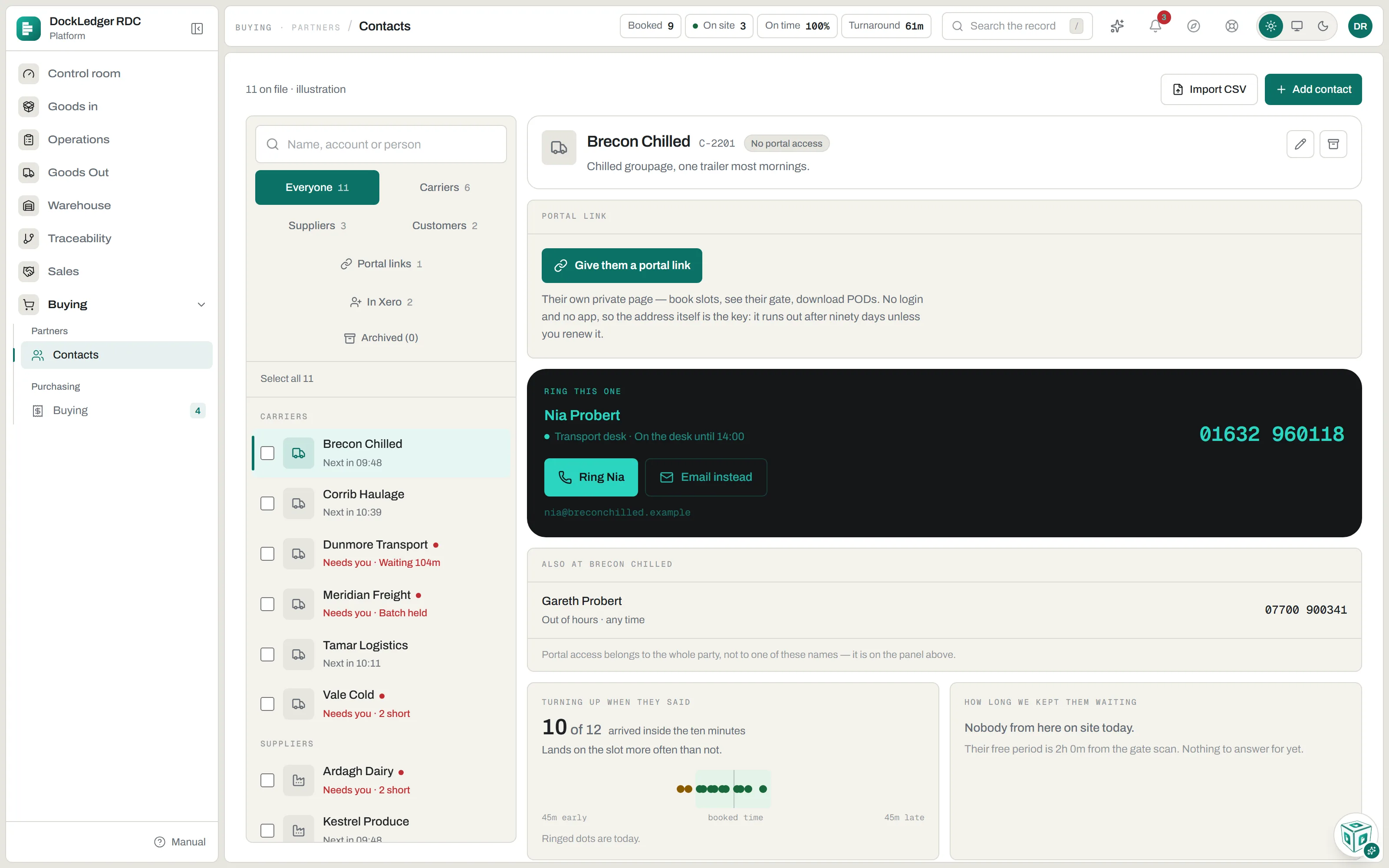
- Add your carriers, suppliers and customers. Buying → Contacts. Add them one at a time with Add contact, or press Import CSV and drop in a .csv export: one row per company, with a column saying whether each is a carrier, a supplier or a customer (leave it out and everything lands as a carrier). A carrier’s free time and detention rate can be set on its own card.
- Give each partner their door. Open a carrier or supplier and press Give them a portal link. It is their own private page, with no login and no app, and it lasts ninety days unless you renew it. Open a customer and press Give portal access for an ordering login. The Portal links tab lists every door you have issued.
Buying · Contacts
Stock and people
- Load your products and draw your racking. Warehouse → Products → Add a product, because goods in cannot record a pallet until the product exists. If you store stock, open the Site plan, press Edit the plan and draw your aisles, then press Save the plan (see Racking & slots).
- Add your people. Account menu → Users & team. Office staff get an email login; the people on the guns and phones get a floor login with a username. See People and roles.
One thing worth getting right first time
Name your bays and your racking slots exactly as they are labelled on the floor. Every screen after this shows those names to a driver or a forklift driver, and a slot called A-3-2 in the system and “third bay, second up” on the rack is a mistake waiting to happen.