Warehouse & racking moduleGoods in → Site plan · Plan and Slots
Racking lives on the Site plan, which shows your site two ways. The Plan is a drawing of your building: the doors, the yard, the areas and the racking runs in them, each run shaded by how full its bays are. Slots is every slot in the racking, bay by level, with what is standing in each. Click a run on the plan to see its codes beside the drawing, then Slots to open that aisle; pick an area along the top to see its slots. On a phone the site plan opens on Slots, and the plan is there to look at. An old bookmark to /app/racking still works and opens every area’s slots.
Drawing the site
Only an owner or a manager can change the plan; everyone else sees it exactly as it is. Start from a layout close to yours, or put a drawing of your building behind the grid, line it up, lock it and trace straight over it. Drawing a racking run is building racking: select it and the panel beside the plan takes its bays a side, levels, which sides have racking, how many pallets sit on a beam and whether level 1 is the pick face, and shows the slot codes those numbers make, in the shape your workspace already uses. Drag the end of a run to add or remove bays. When you save, the plan lists what it will do to your slots first, aisle by aisle and code by code, and then does it: new slots are built, empty ones the run no longer covers are taken out of use, and slots holding stock are never touched. If any part of that is refused you are told exactly what went through and what did not. Anything still missing from the plan is listed, because a plan missing part of the site is worse than none: people trust it.
Space, Pick faces and Out of use above the plan change what the runs are shaded by: ivory is empty, light teal part full, teal full, hatched out of use, and a dashed bay is one the run asks for that Save will build.
Building racking in one go
Nobody types in hundreds of slots one at a time. Build racking, in Slots, takes an aisle, or several (A, or A,B, or A-D), how many bays each has, how many levels each bay stands, and how many pallets sit on a beam. It shows the codes it would make, in the shape your workspace already uses, before you press Build. A code that is already a slot is left alone. Only an owner or a manager builds racking. Tick Make the ground level the pick face if pickers work from the floor: directed picking and every pick-face count key off that flag, and you can change any slot afterwards.
Reading the slots
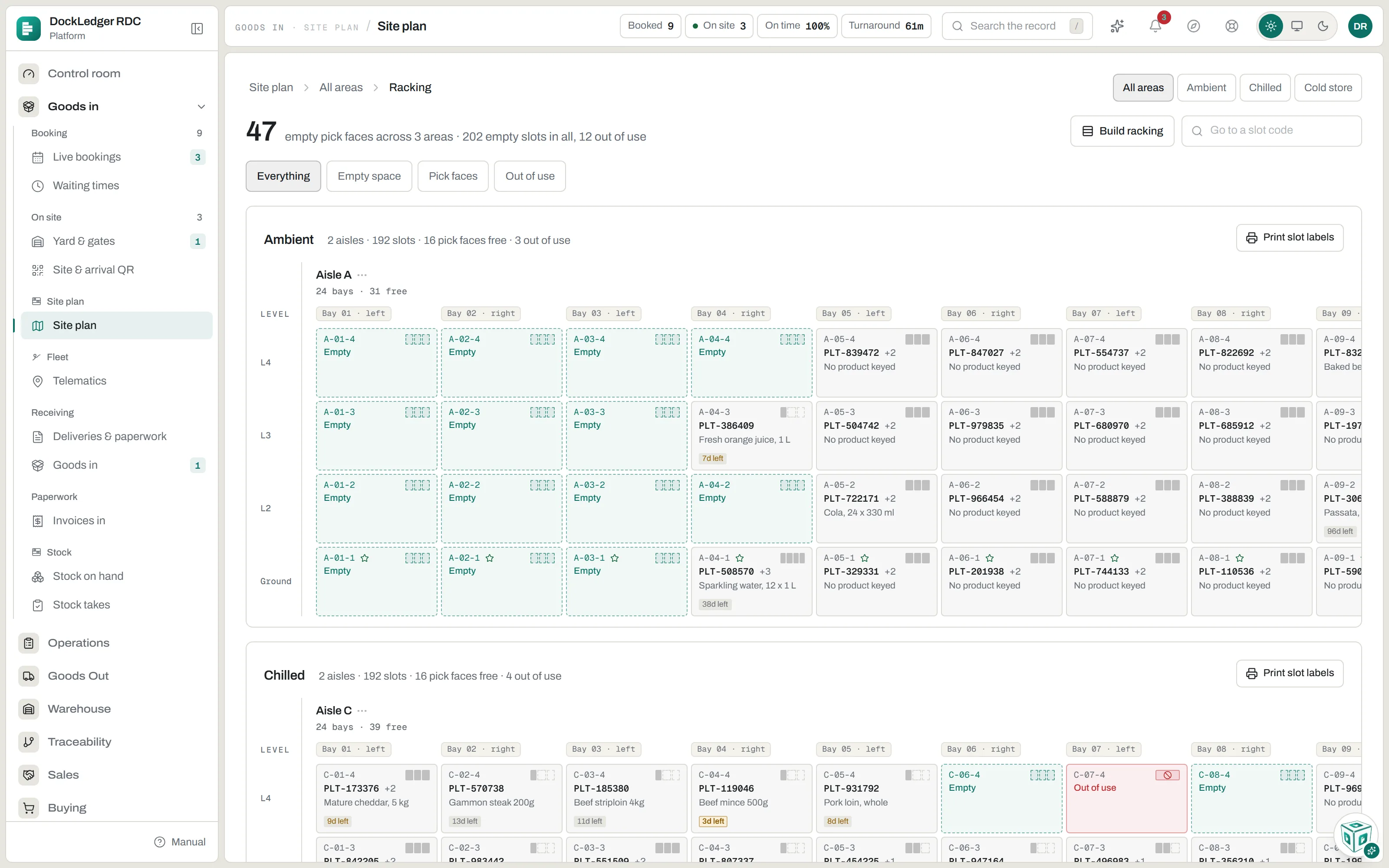
The line across the top of Slots is the news: how many pick faces are empty, how many slots are free, how many are out of use. Filter to empty space, pick faces or out of use, or pick one area from the tabs. Each aisle is drawn the way you walk it: bays in order along the aisle, levels from the ground up. A slot shows its code, the pallet in it and the product, a star if it is a pick face, and how many days are left on the soonest use-by in it, coloured as that gets close. A dashed slot is empty. A red one is out of use. Held means the stock in it cannot be picked.
Click a slot to see what is standing in it, with each pallet’s plate, cases and dates. From there you can remove stock with a reason, make the slot the pick face (or unset it), or take it out of use, and print its label. Type or scan a slot code into Go to a slot code to jump straight to it; the hyphens are optional. Slot labels print for a whole area, one aisle or one slot.
- Out of use, not deleted. A slot or a whole aisle taken out of use keeps its code on every past put-away, count and removal, and can be put back. A slot still holding stock stays in use, and nobody can overrule that: a slot archived with stock in it is how stock goes missing on paper.
- Slot labels. Print slot labels prints a sheet for an area, one label per beam, each with the code in large type and a barcode. A single slot prints on its own from the slot.
- Not placed on the map. Slots with no aisle or rack recorded cannot be drawn, so they are listed under the plan rather than disappearing. They still hold stock and still scan. Give them an aisle and a rack and they take their place.
Putting away, and keeping the faces full
Pallets come off the dock and into the racking on the reach truck app, at dockledger.app/reach, which has two lists of jobs. Put away is every pallet scanned off a lorry that has no slot yet. Fill a face is every request from a picker whose pick face is running low: the app shows where the stock is in reserve, and the driver scans the pallet they take and then the face they put it on. If they take a pallet other than the oldest, the app asks for one line saying why, and that goes on the rotation record. When there is no signal the move is held on the truck, and the office sees that rotation could not be checked.
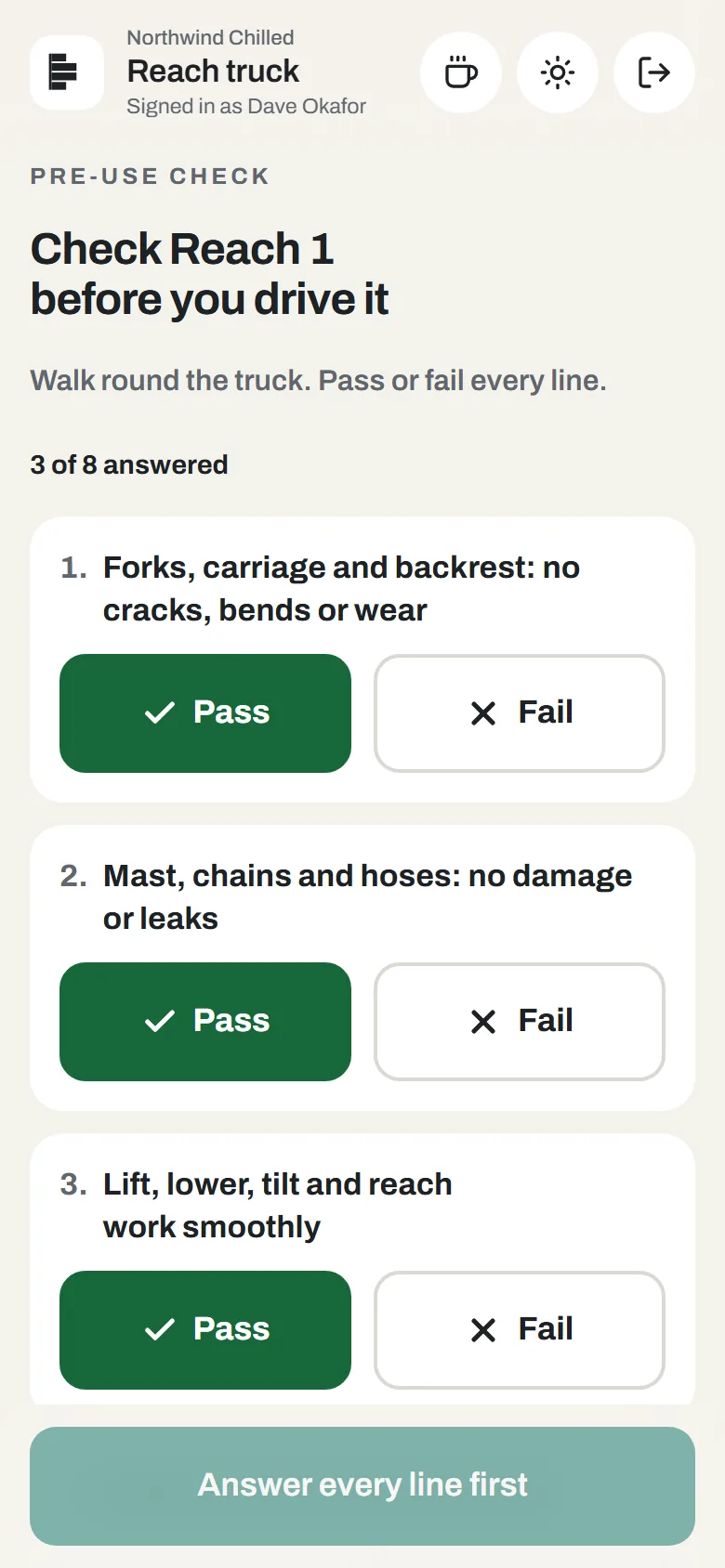
Add your trucks under Operations → Reach trucks and the app starts asking each driver which truck they are on, and for a pre-use check before the first job of every truck shift. Every line is passed or failed; a fail takes the truck off road, and only an owner or a manager can put it back in service, saying what was done. Anyone can report a fault and take a truck off road. The screen shows each truck’s status, who is on it, its jobs this shift, when its LOLER inspection is due, and every check it has had, failures first. Owners and managers set the check list, between 3 and 15 lines. With no trucks added, the reach app works without asking.
Who this is really for
Where this fits: Warehouse management for food