Case picking moduleOperations → Pick board · the picker app
Pallet moves are the reach truck’s job. Case picking is the other one: someone walks the aisle with a gun and a pallet truck, taking twelve cases from one face and eight from another. DockLedger runs it from the order to the wrapped pallet. It needs the Case picking module on top of Warehouse & racking.
Set it up once
- Pick faces. The slots pickers actually pick from, usually the ground level. Make them when you build racking, or open any slot on the racking and press Make this the pick face. Picking only ever takes from a pick face.
- Case barcodes. Map each product’s case code under Warehouse → Barcodes, and set how many units one beep is worth. A code that is not mapped is refused at the scan, with a sentence saying so.
- Lanes. The marshalling lanes where picked stock waits to go out are made on the Goods Out board. A list pointed at a lane tells the picker where to take the pallet when it is done.
Where the lists come from
A customer order becomes a pick list when the office presses Release to picking on a confirmed order under Sales → Orders. It lands on the Pick board, and in the pickers’ pool of lists up for grabs. The office can assign it to a picker by their number on the board, or the first free picker takes it: the pool is oldest first, and Take the next list gives a picker the oldest one.
The picker app
Pickers work at dockledger.app/pick, on a gun or a phone, signed in with a floor username and password. Your lists shows what is theirs and what is up for grabs. On a list, each line says where to go: the pick face, how many cases are there and their date. The picker scans a case and the line counts itself off. The stock comes off the ledger in the same scan, oldest date first inside the face, and never from reserve.
- Face running low? Fill this face asks the reach truck to bring a pallet down from reserve. The picker carries on with the rest of the list and the line comes back when the face is full.
- Nothing anywhere? None here, tell the office reports it, and the line waits on a decision rather than being skipped in silence.
- Held stock is shown with its reason and never offered. The office releases it; the picker does not.
- Pallets wrapped. Record a pallet each time one is built, and the board counts them. When the list is done, the app says which lane to take it to.
Breaks are taken from the app too: a quick break or the full one, with the minutes left counting down. Break lengths are set under Settings → Site → Breaks, and an overrun shows on the board. Picks with no signal are held on the phone and sent when it comes back.
Why the deduction is automatic
A customer’s minimum life on receipt
Set Minimum life on receipt (days) on a customer in Contacts and picking honours it. Stock in the face with fewer days left than that customer needs is stepped over for their orders and refused in the customer’s name if nothing else covers it, rather than shipped and argued about on delivery. The pick sheet on the board shows the stock it stepped over, and why, before anyone asks.
The Pick board
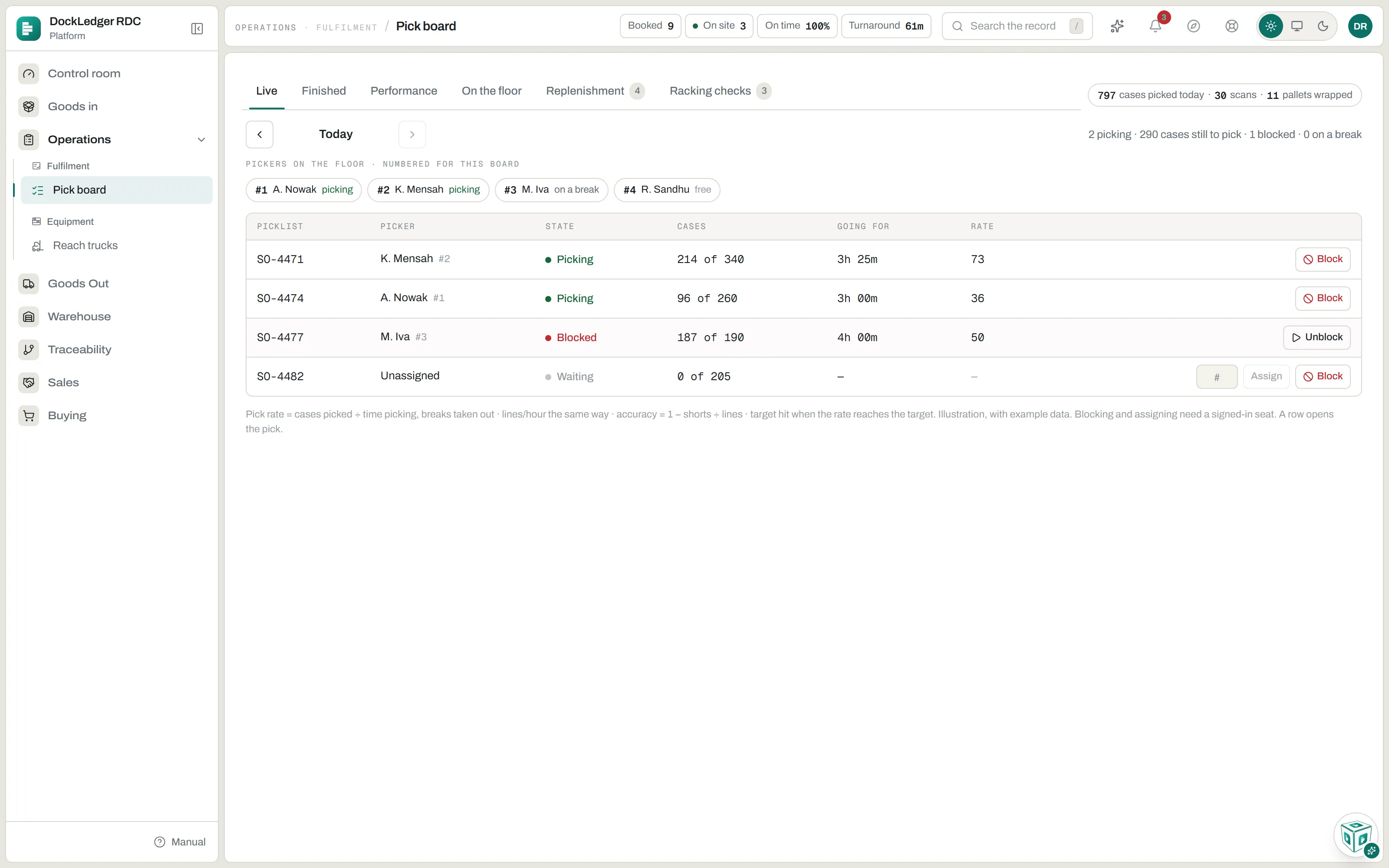
Whoever runs the floor has their own screen, in four tabs. The example board above also shows Replenishment and Racking checks; those two tabs are for illustration only and do not appear on your workspace.
- Live. Today’s lists: who is picking what, cases done against the total, how long it has been going and the rate. Pickers are numbered for the board, so assigning is typing a number. Block a list to stop it; Unblock to let it go.
- Finished. The lists done today, and what was short on each.
- Performance. Cases an hour against the target, over the minutes actually worked with breaks taken out, and the last seven days. Only an owner or a manager sets the target.
- On the floor. Who is on shift, their breaks, who has gone quiet for ten minutes or more, and each picker’s daily case target. A line that is short or blocked can be sent short (the order drops to what was picked) or put back on the picker’s list; a whole list can be closed short. Refills a picker asked for are on the reach trucks’ Fill a face list, under Operations → Reach trucks.
Writing off a line, closing a list short, breaks, shifts and targets need somebody signed in as themselves, and breaks and targets need an owner or a manager.
One screen per job
An owner or a manager can hold a team member to a suite from Users & team, so they see only the screens their job uses: the Picking suite, the Supply suite or the Goods Out suite. Floor logins work the same way. A picker’s username opens the picker app, not the checker app, and a login sent to the wrong app is told which one it is for. See People and roles.
Where this fits: Warehouse management for food